PixVerse V6 AI Video Generator
PixVerse V6 on MaxH3 turns a prompt or a single image into a 1–15 second clip with directed camera moves, expressive characters and optional sound, at 360p up to 1080p.
Key Features of PixVerse V6
- Master Precise Camera Motion: Push in, arc around and reveal, all in one smooth move.
- Capture Deep Emotional Nuance: Faces that move from one feeling to the next.
- Simulate Realistic Physical Interactions: Things fly, fall and land with real weight.
- Write Text Into the Scene: Words formed by the world itself, not pasted on top.
- Generate Immersive High-Speed POV: Drone dives and chases that keep their speed.
- Streamline Commercial Ad Production: One product photo becomes a polished spot.
Master Precise Camera Motion
Describe the move and PixVerse V6 follows it. From a single photo of a lakeside cabin, the camera pushes toward the lit window, then arcs around the porch to reveal the misty lake and the mountains, in one steady shot. Write each move in the order you want it.
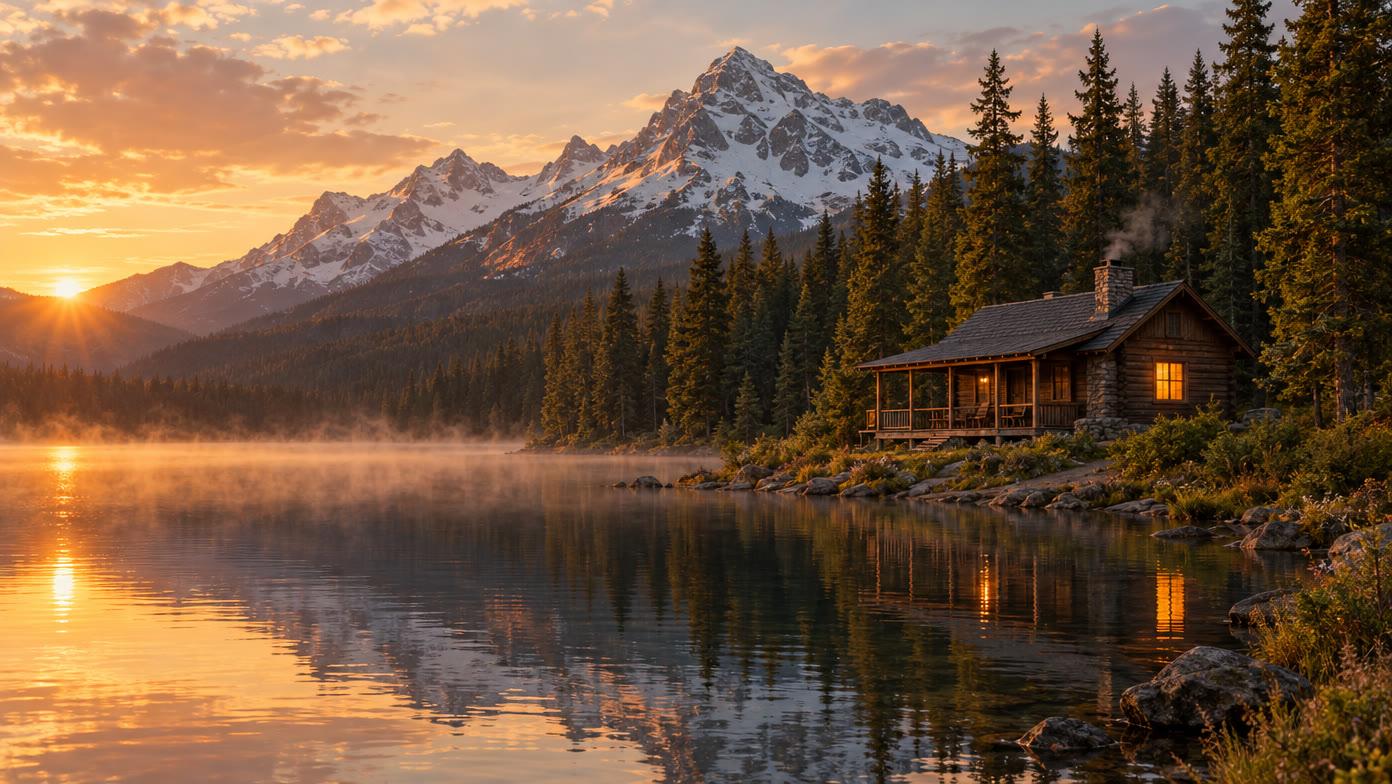
Start wide on the cabin, then the camera pushes in slowly toward the lit window, then arcs smoothly left around the porch to reveal the misty lake and the mountains behind; one steady, gimbal-smooth move. Birdsong and water lapping at the shore.
Capture Deep Emotional Nuance
Small changes in a face carry a story. Here an elderly man reads a handwritten letter, his face wavering before a grateful smile spreads across it and he presses the letter to his chest. Describe the emotion and how it changes over the shot.
Close-up of an elderly man at a kitchen table reading a handwritten letter; his eyes fill with tears, his lips tremble, then a slow, grateful smile spreads across his face as he presses the letter to his chest. Soft morning window light. A quiet clock ticking and a soft exhale.
Simulate Realistic Physical Interactions
Motion follows weight and momentum. A chef tosses fried rice out of a wok over open flames, and the grains arc through the air and land back in the pan while the fire flares around it. Describe the action and what it touches.
Close-up in a busy restaurant kitchen: a chef tosses fried rice high out of a carbon-steel wok over roaring flames, the grains and diced vegetables arcing through the air and landing back in the pan as he catches them, the flames flaring up. Sizzling, clanging metal and the roar of the burner.
Write Text Into the Scene
PixVerse V6 can build a word out of the scene. Asked for clouds that spell "DREAM", it gathered them into the letters over a mountain valley, held the word, then let it drift apart. Put the exact word in quotes and keep it short.
Time-lapse of white clouds drifting over a green mountain valley at sunrise; the clouds slowly gather and form the word "DREAM" in giant, soft cloud letters across the blue sky, then begin to drift apart. Gentle wind and birdsong.
Generate Immersive High-Speed POV
First-person shots keep their momentum. This drone shot dives down the face of a waterfall, pulls up over the pool and races low through a narrow canyon, banking with the river. Use it for action intros, travel reels and game-style sequences.
FPV drone shot: the drone dives down the face of a towering waterfall at high speed, pulls up just above the churning pool, then races low along the river through a narrow green canyon, banking around the bends. Rushing wind and roaring water.
Streamline Commercial Ad Production
Start from a product photo and describe the ad. From one image of a pair of headphones, PixVerse V6 lifted them off the stone and turned them slowly in mid-air as glowing dust drifted through the light, keeping their shape and sage-green finish.
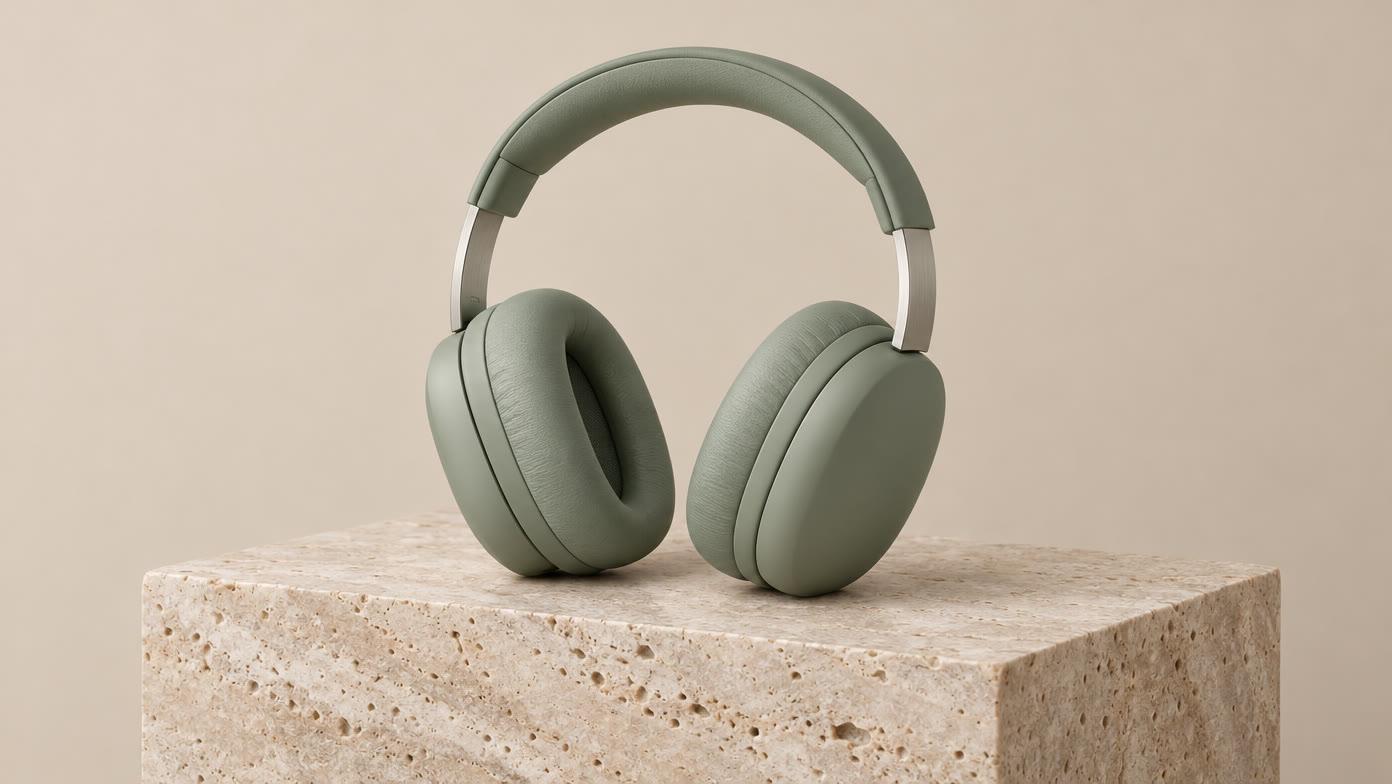
A premium commercial for these headphones: a soft light sweep glides across the cushions and metal sliders, then the headphones lift gently off the stone and rotate slowly in mid-air while fine dust motes glow in the light; the camera eases in. Keep the headphones' exact shape and color. A deep, smooth electronic beat.
Use Cases of PixVerse V6
Short, controlled clips for people who need a lot of them.
Social Media Creators
Turn an idea or a still into a 1–15 second clip, in the aspect ratio your platform wants.
E-commerce and Brand Teams
Animate product photos into ad-ready shots without booking a studio day.
Filmmakers and Storyboard Artists
Try camera moves and performances before the shoot, from a prompt or a location photo.
Travel and Action Creators
Make fast first-person sequences for intros, trailers and travel reels.
PixVerse V6 vs Kling 3.0 vs Grok Imagine Video 1.5
| Feature | PixVerse V6 | Kling 3.0 | Grok Imagine Video 1.5 |
|---|---|---|---|
| Developer | PixVerse | Kuaishou | xAI |
| Inputs | Text, first frame | Text, first frame | Text, first frame |
| Resolution | 360p, 540p, 720p, 1080p | 720p, 1080p, 4K | 480p, 720p, 1080p |
| Clip length | 1–15 s | 3–15 s | 1–15 s |
| Aspect ratios | 16:9, 9:16, 4:3, 3:4, 21:9, 1:1, 3:2, 2:3 | 16:9, 9:16, 1:1 | 16:9, 9:16, 3:2, 2:3, 1:1 |
| Audio | Optional | Optional | Native |
| Credits for 5 s at 720p with sound | 59 | 80 | 60 |
| Who can use it | Free and paid plans | Free and paid plans | Free and paid plans |
Specs and credits as offered on MaxH3.
What Makes PixVerse V6 Stand Out
- Camera moves you can direct: Write the moves in order and V6 strings them into one shot, even from a single still.
- Any length, any frame: 1 to 15 seconds in eight aspect ratios, from 9:16 verticals to 21:9 widescreen, at 360p up to 1080p.
- Sound when you want it: Turn audio on for sound generated with the picture, or leave it off for a silent clip at fewer credits.
How to Use PixVerse V6 on MaxH3
Open PixVerse V6
PixVerse V6 is already selected in the generator above. Choose text to video, or image to video to start from your own photo.
Describe the Shot
Write what happens and how the camera moves, in order. For sound, describe it and turn audio on.
Generate and Download
Pick 1 to 15 seconds, 360p to 1080p and an aspect ratio, then press the arrow. The clip opens in your workspace, ready to download as an MP4.
More AI Video Models on MaxH3
FAQs
Create Directed, Cinematic Clips With PixVerse V6
Describe the scene and the camera move, or start from a photo, and get a 1–15 second clip in about a minute.