Anime Video Enhancer
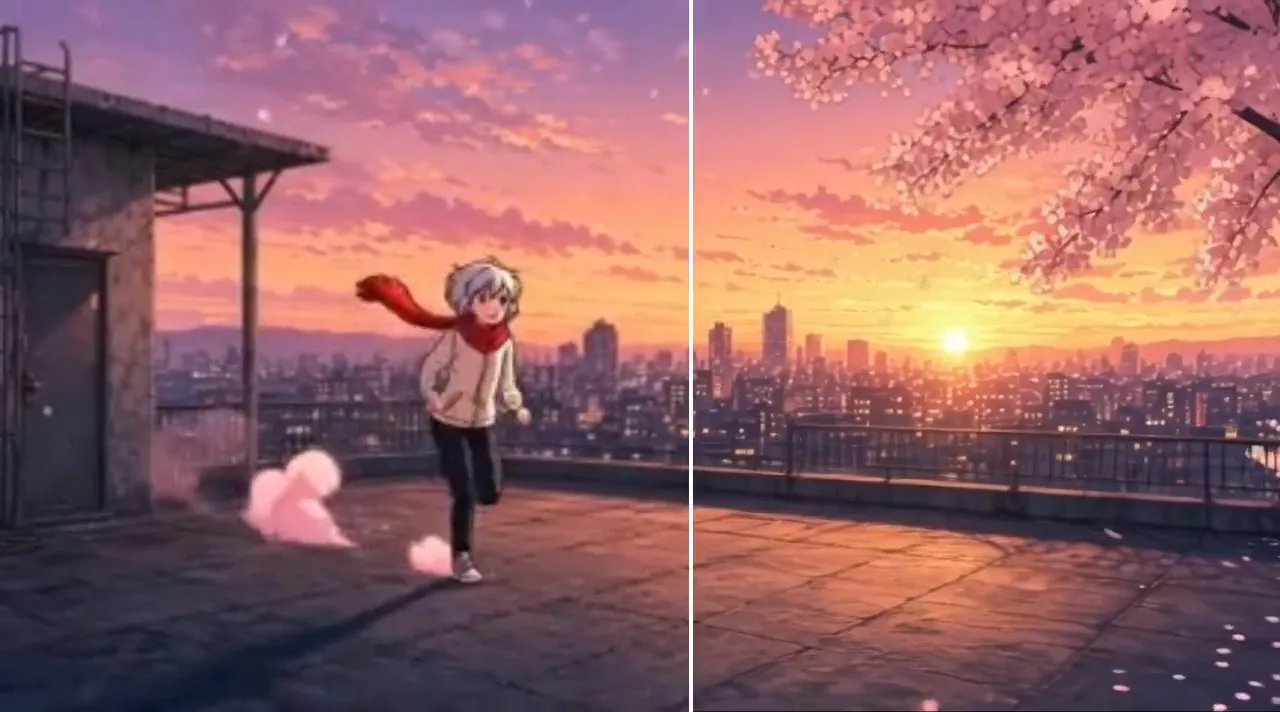
Enhance Anime Videos in an Instant
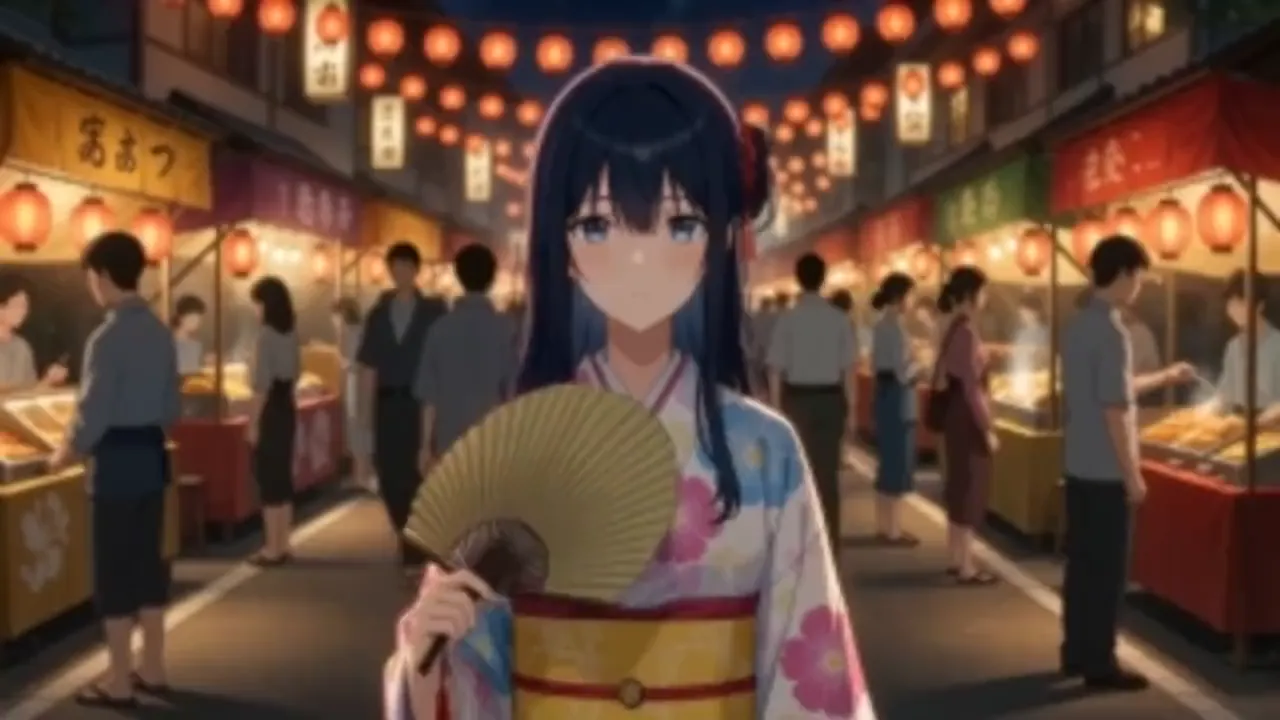
Drag the slider to compare a soft, low-resolution summer-festival scene with the crisp HD look Anime mode is built for: sharp hair strands, clean eyes and bright fireworks, with the original drawing style untouched.
Crisper Line Art
Outlines and fine strokes come back sharp instead of soft and smeared.
The Original Style Kept
Anime mode is tuned for drawn and CG footage, so flat colors stay flat and shading stays clean.
Less Grain and Noise
Grainy or noisy animation can be cleaned up with Denoise mode.
Keep Fast Battle Scenes Sharp
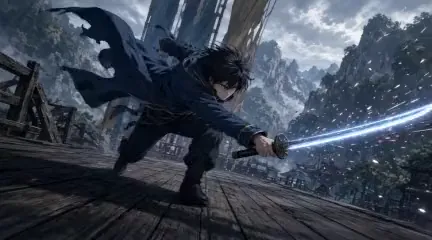
A swordsman's dash with speed lines and a glowing blade, saved at 240p: Anime mode keeps his coat, his hair and the streaks of light crisp in HD.
Enhance Cartoons and Kids' Animation
A round little fox chasing a butterfly through a meadow: the outlines, the fur tufts and the flowers come back clean and bright.

Bring Out Character Faces
A close-up of a boy looking up at the sky: Anime mode sharpens his eyes, his eyelashes and the strands of his hair.

Remove Grain From Retro Anime
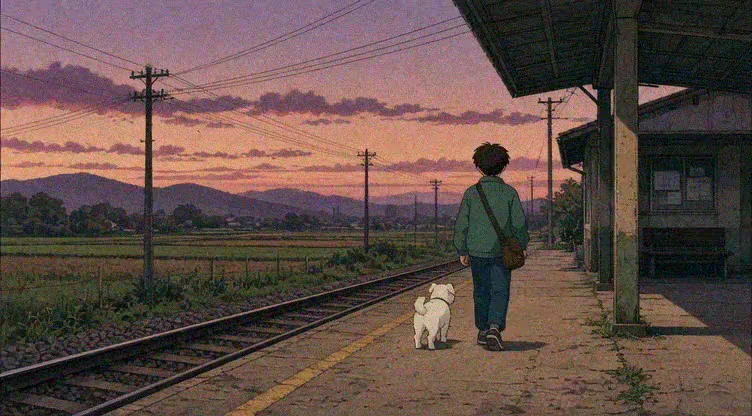
A 90s-style station scene covered in film grain: Denoise mode clears the grain while the boy, his dog and the power lines stay clear.
Who Benefits From Anime Enhancement
Cleaner animation for fans, creators and studios.
Enhance Favorite Anime Clips
Clean up low-resolution clips for edits, AMVs and fan compilations.
Polish Story Scenes
Make dialogue and close-up scenes crisp for re-uploads and trailers.
Clarify Fast Battle Motion
Keep action scenes readable when lines and effects smear at low resolution.
Polish Stylized Campaign Clips
Bring animated ads and branded shorts up to HD before publishing.

How to Enhance Anime Videos With MaxH3
Upload Your Clip
Add an MP4 or MOV file up to 200 MB in the Anime Video Enhancer above.
Keep Anime Mode, Pick a Size
Anime mode is already selected. Choose 2x, 4x, HD or 4K; the credit cost shows before you start.
Enhance and Download
Press Create. Our 5-second test clips were ready in 30 to 90 seconds; download the MP4 with its original audio.
FAQs

Try the Anime Video Enhancer Today
Upload an anime or cartoon clip and get a sharper HD version with the original style intact.