AI Art Generator

Turn Your Ideas Into Art With an AI Art Generator
Describe what you see in your head, pick a style and our AI art generator paints it for you. Try a scene as a Ghibli frame, a Monet canvas or a pixel-art game, switch models in one click, and keep going until the picture matches your idea. You don't need to know how to draw.
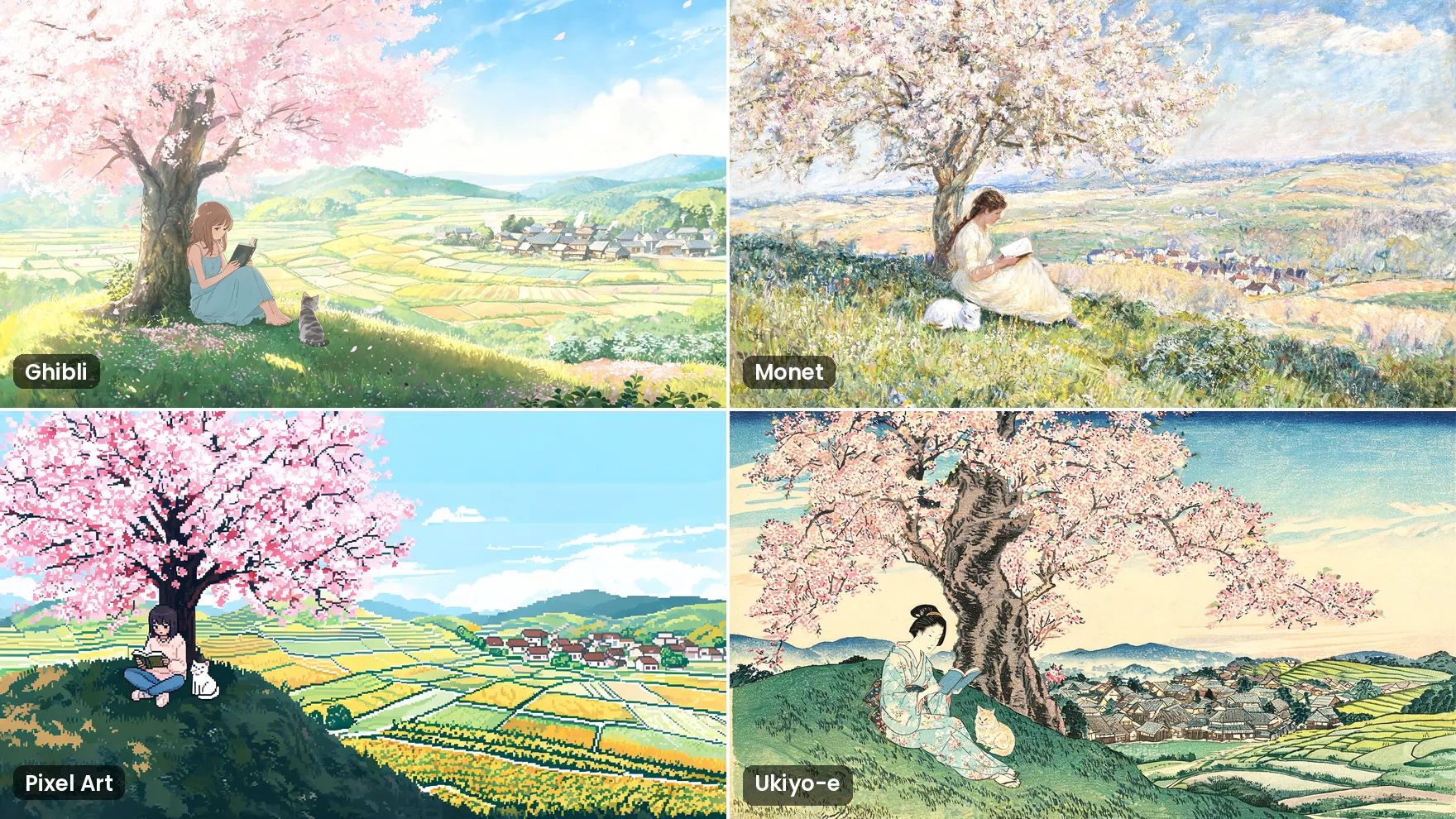
Dozens of Art Styles in One Click
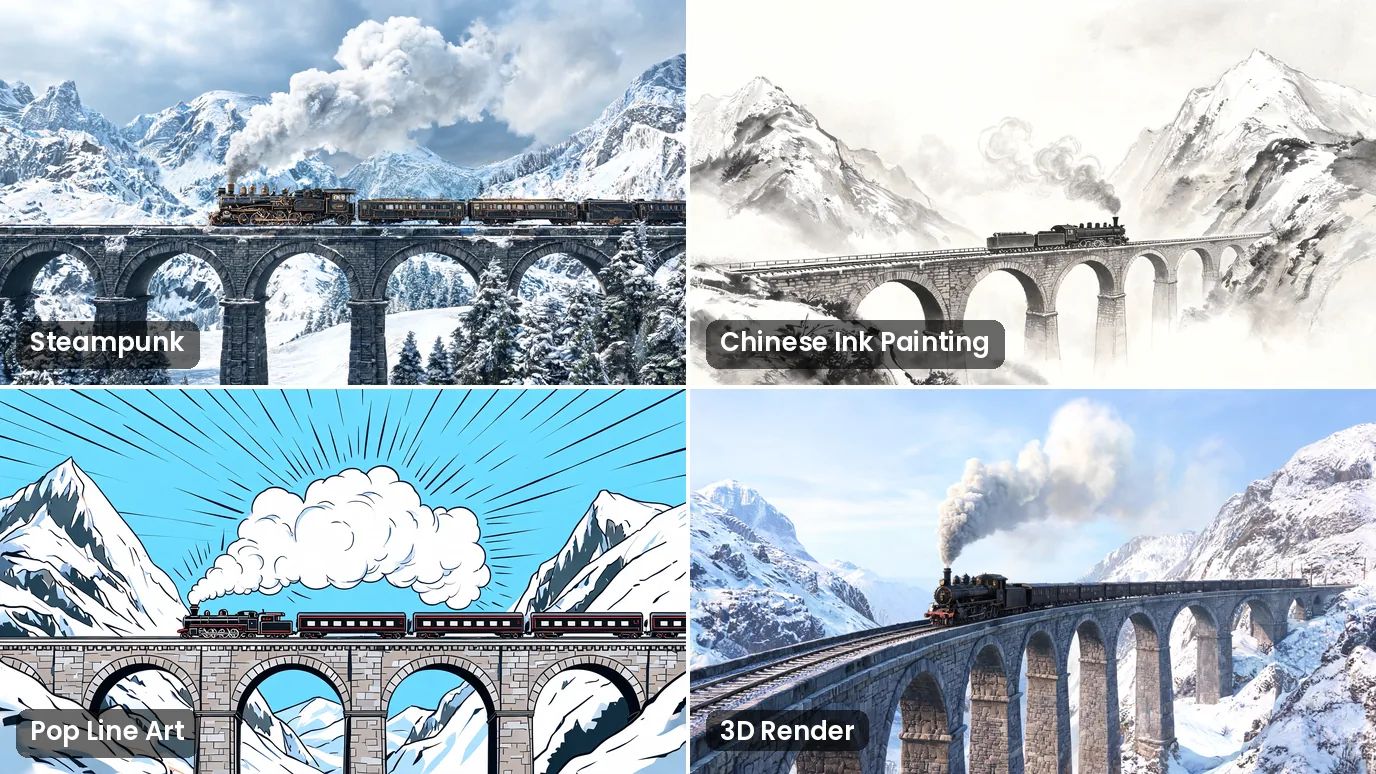
Pick from more than 80 styles, from Chinese ink painting and Ukiyo-e to Steampunk, Pop Line Art and 3D Render. The same idea looks completely different in each one, so you can explore a direction in seconds.
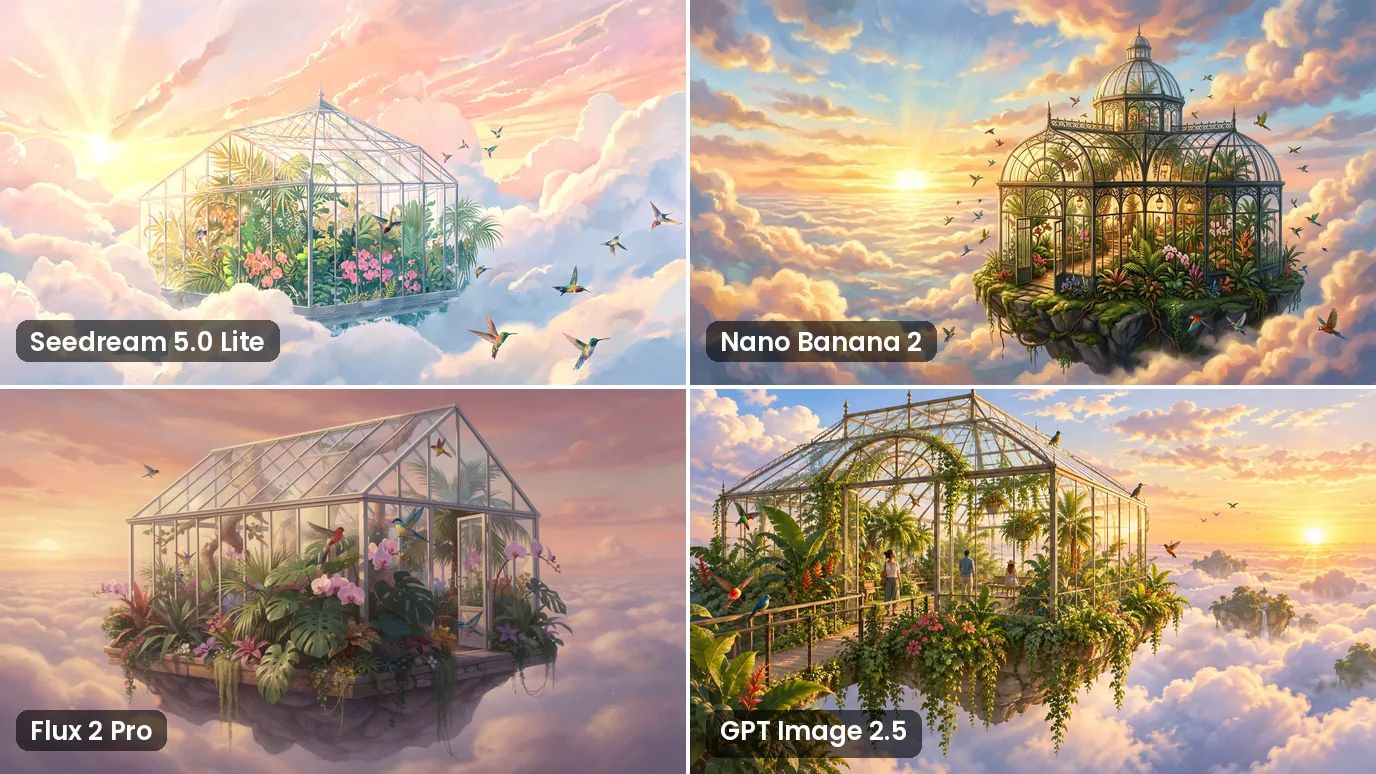
Top AI Art Models in One Place
Seedream, Flux, Recraft, Grok Imagine, GPT Image and more sit in one list. Run the same prompt on different models and keep the one that suits your idea, with no need to sign up for each of them.
Art That Follows Your Prompt
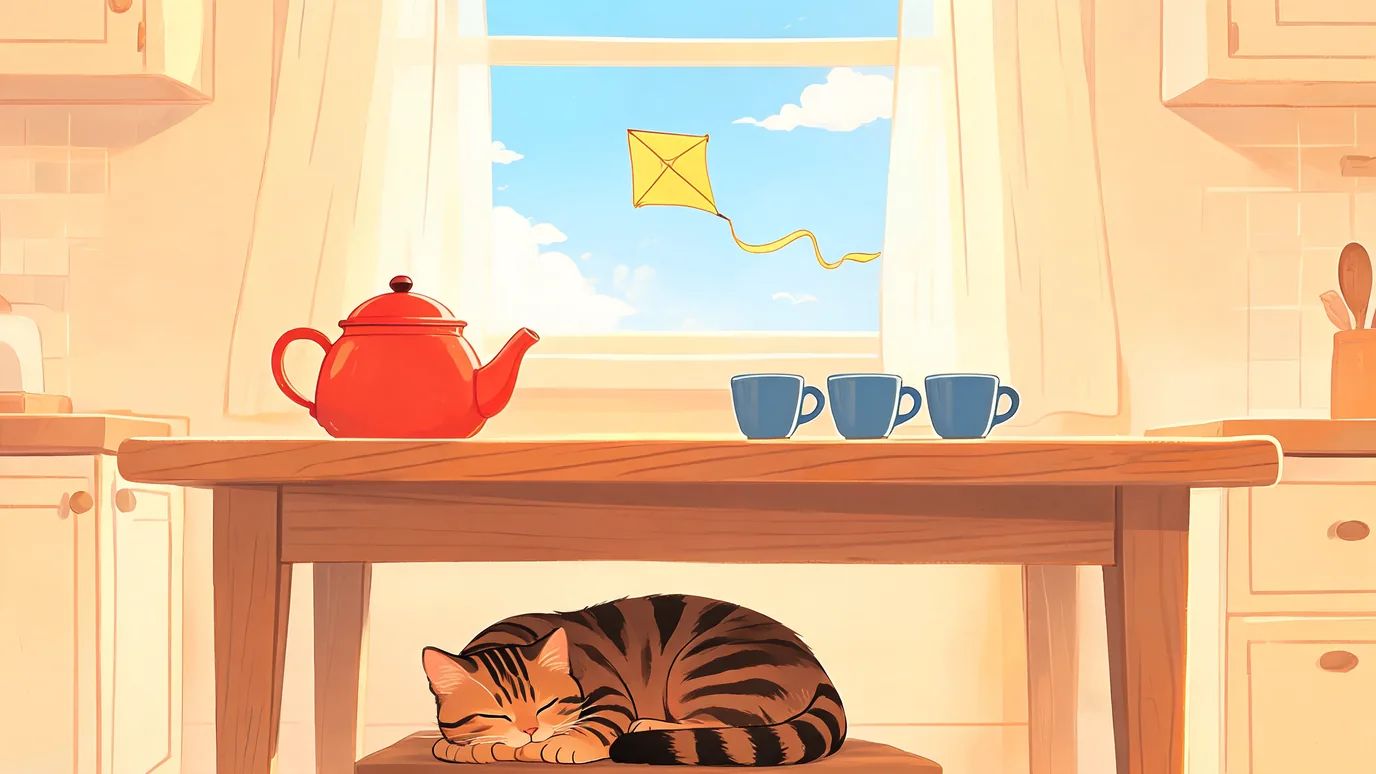
Name the objects, colors, positions and mood, and the picture follows. A detailed prompt gets you a detailed scene, and a small change in wording is all it takes to adjust the result.
Make Any Kind of Artwork
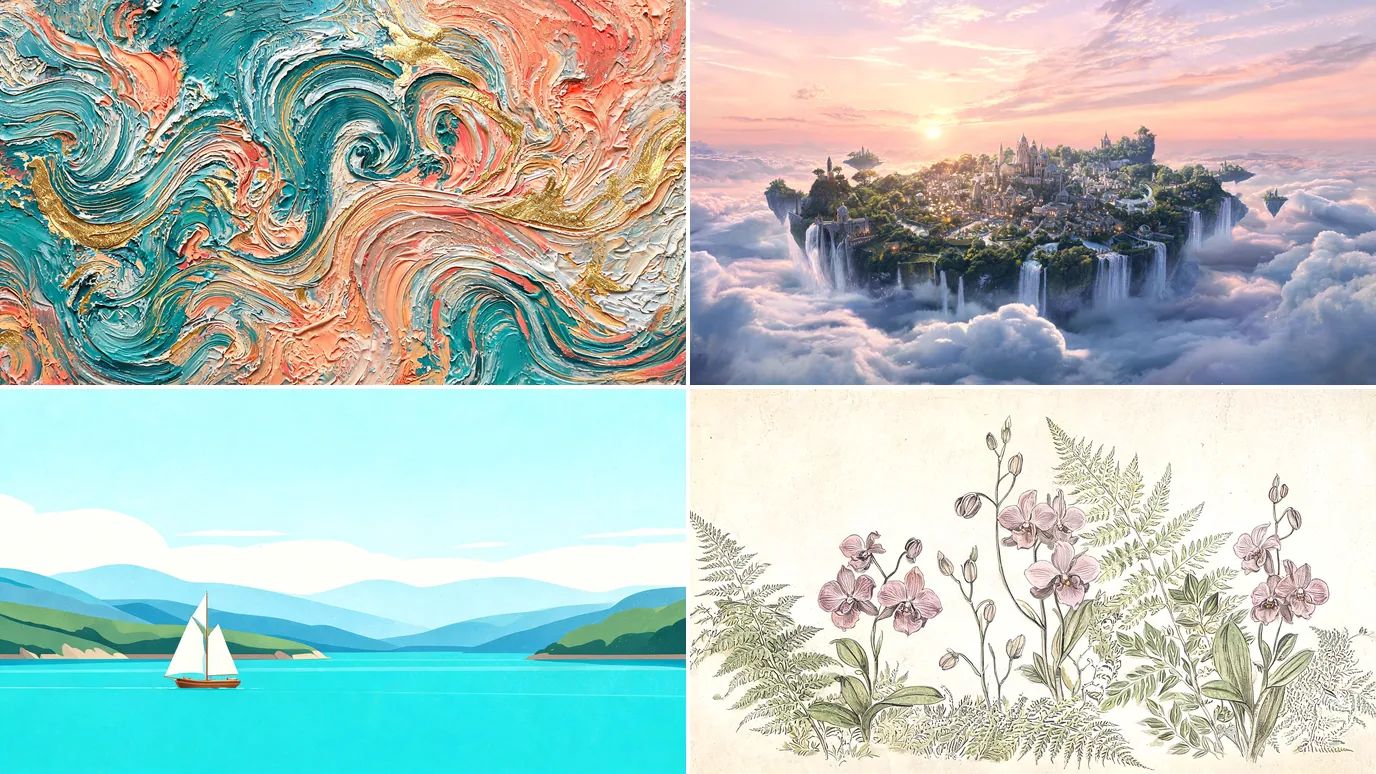
Abstract paintings, fantasy worlds, retro posters or botanical studies: if you can describe it, you can turn it into AI artwork. Choose the shape that fits, from a square post to a wide wallpaper.
How to Use the AI Art Generator
Describe Your Idea
Write what you want to see: the subject, the setting, the colors and the mood. The more detail you give, the closer the result.
Choose a Model and a Style
Pick a model, open Style to browse the looks, then set the aspect ratio. Style appears on the models that support it.
Create and Download
The price shows on the Create button. Click it, check the result and download your artwork, or change a few words and try again.
FAQs
Your Next Artwork Starts With a Sentence
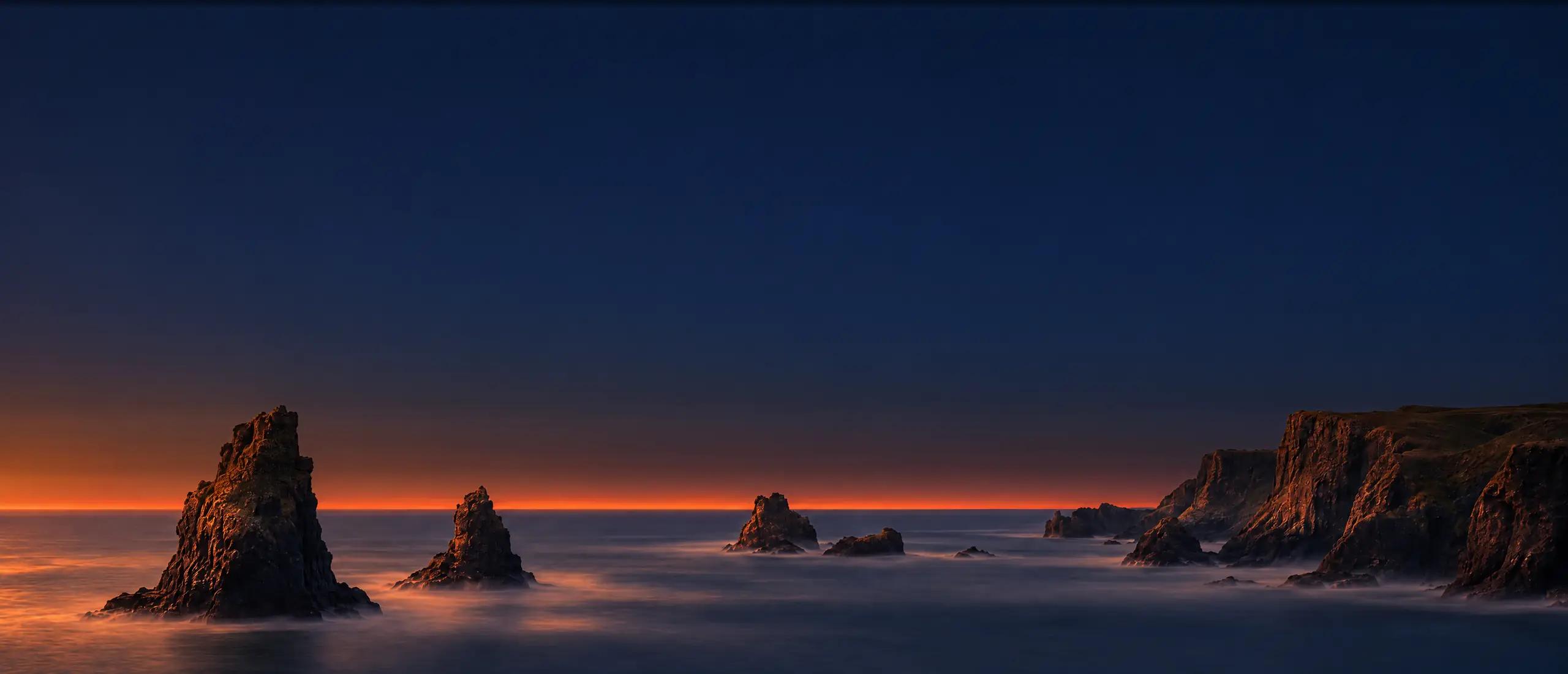
Write your idea, pick a style and see it painted in front of you.