Image Upscaler

Topaz Enhance Image Upscaler: Pick the Right Mode for Every Photo
Our AI image upscaler runs on Topaz Enhance, with five modes tuned for different kinds of images. Match the mode to your source and upscale up to 16×.
Standard Mode
The all-rounder for everyday photos: portraits, products, travel shots and social posts. It balances sharpness with natural texture, so it's the safe default when you're not sure which mode to pick.
- Topaz Standard V2
High Fidelity
For images that already look good: DSLR shots, studio portraits and high-res product photos. It keeps skin, hair and fabric true to the original with minimal invented detail, which makes it ideal for large prints.
- Topaz High Fidelity V2
Low Res
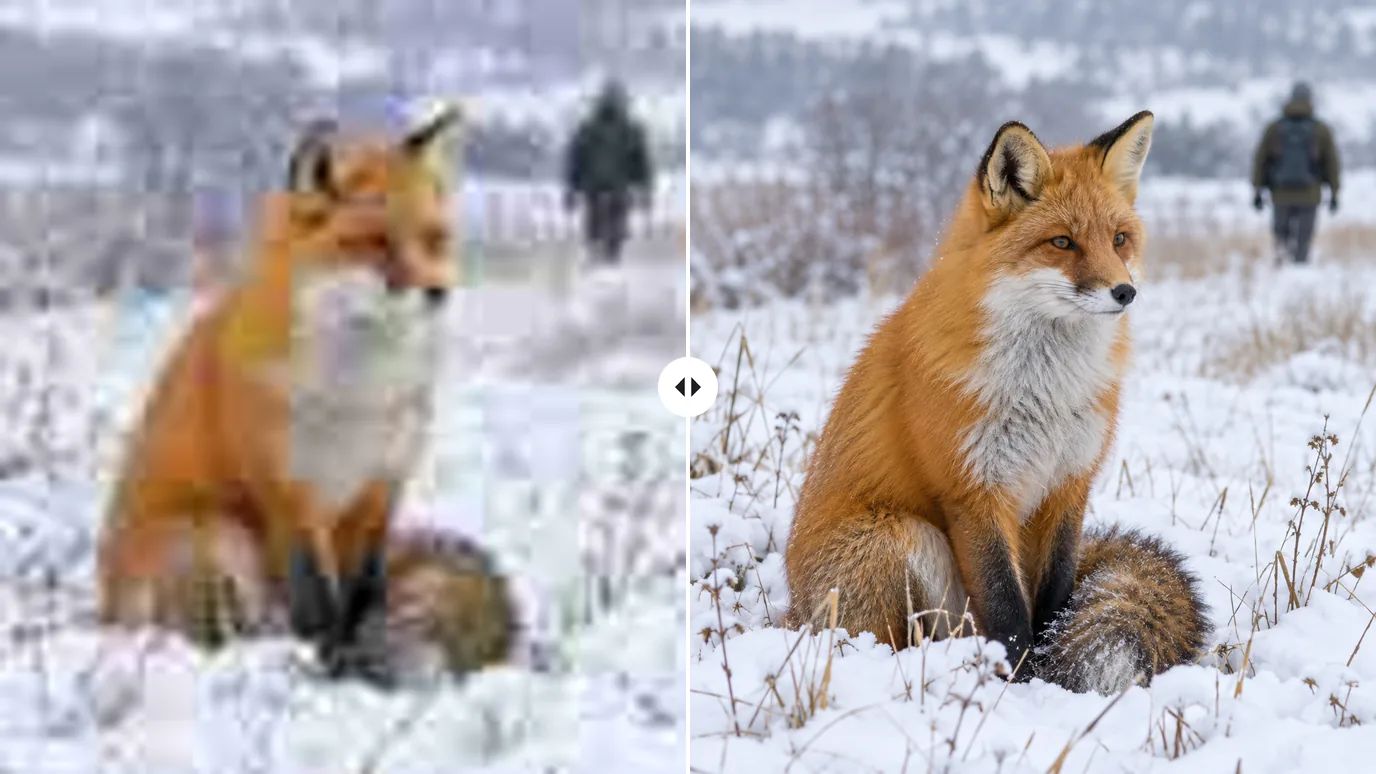
For small, blurry or heavily compressed images: old web photos, thumbnails, screenshots and early phone pictures. It rebuilds lost detail and cleans up noise and JPEG blocks as it enlarges.
- Topaz Low Resolution V2
Text&Shapes
For images built around text and graphics: logos, signs, documents, posters, charts and UI screenshots. It keeps letter edges crisp and lines straight instead of smoothing them into blur.
- Topaz Text Refine
Art&Anime
For illustrations, anime, cartoons, digital paintings and 3D renders. It preserves clean line art and flat areas of color without adding photographic grain.
- Topaz CGI
Upscale Images up to 16× with an AI Image Upscaler
Upload a photo, illustration or screenshot, choose a scale from 2× to 16× and a mode that matches it, and MaxH3 enlarges it with Topaz Enhance. The AI rebuilds edges and texture instead of stretching pixels, so small, compressed or cropped images become usable for print, product pages and wallpapers.
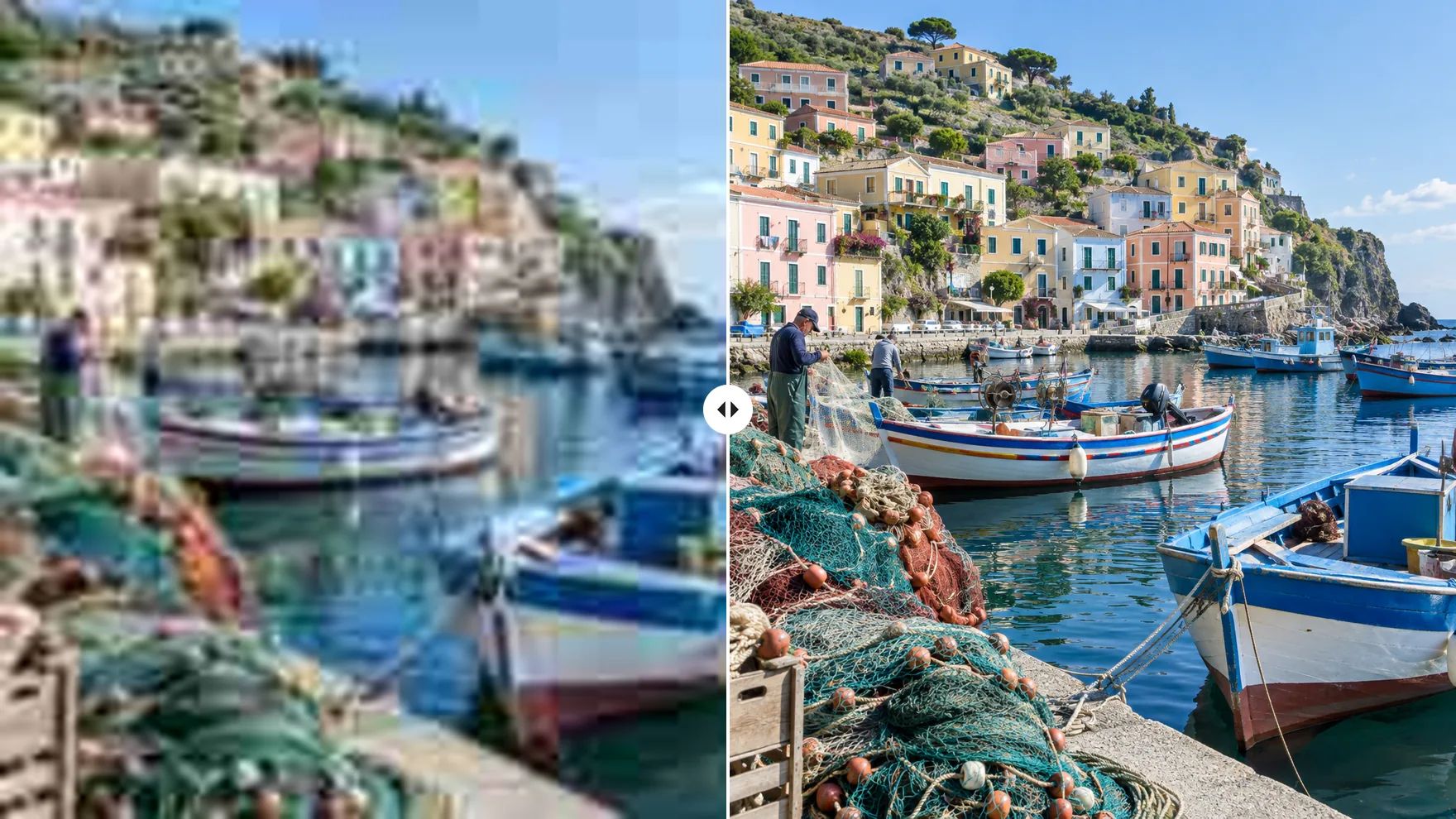
Sharper, Larger Images for Every Kind of Picture
Old snapshots, product shots, digital art and tight crops: pick the scale and the mode that fit.
Upscale Old and Low-Resolution Photos
Small web images, early phone pictures and compressed files gain the most from upscaling. Choose Low Res mode, raise Fix Compression in Settings to smooth out JPEG blocks, and enlarge the photo 2× or 4×. Printed date on your scan? Clear it first with the watermark remover.
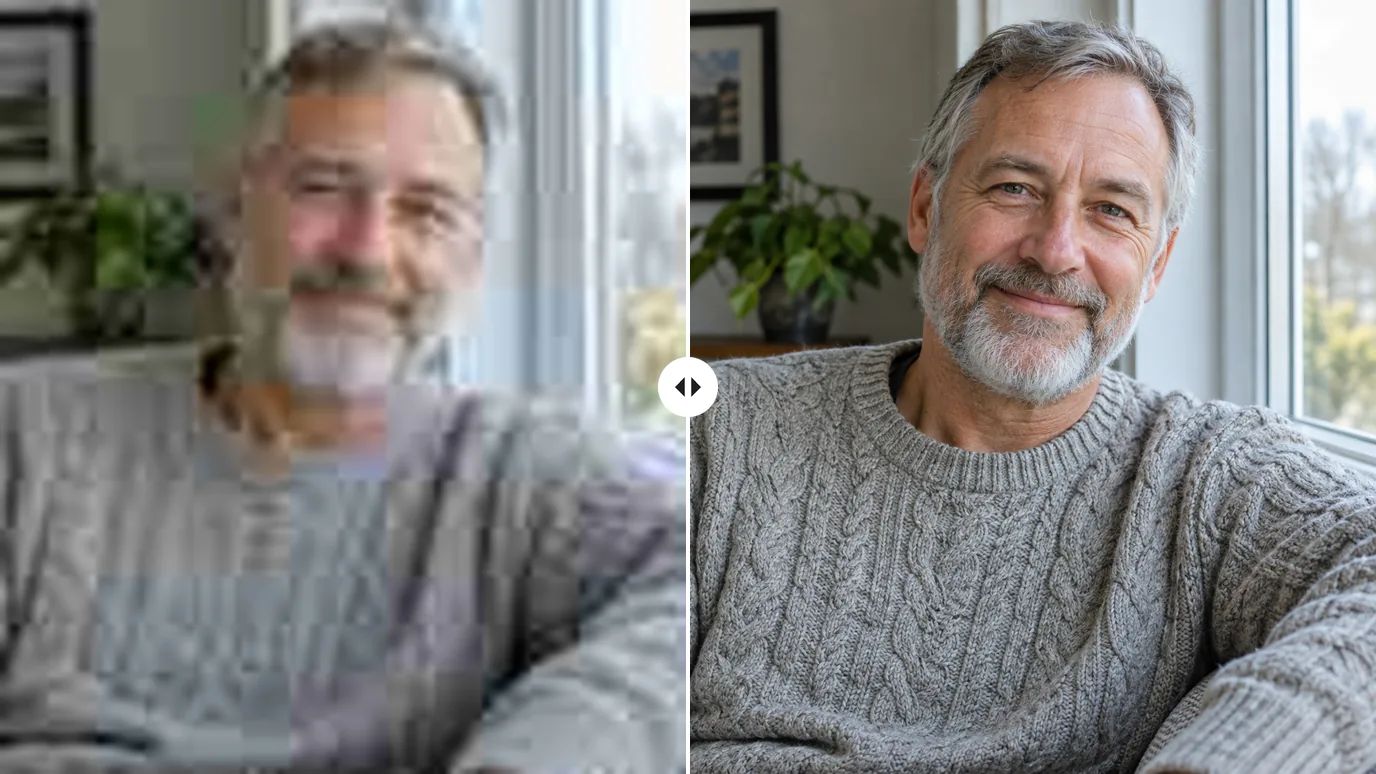
Enlarge Product Photos for Zoom and Print
Shoppers zoom in on product photos, and small images turn soft and blocky when they do. Upscale your shots in High Fidelity mode to keep materials and surfaces close to the original, then remove the backdrop with the background remover for a clean listing.
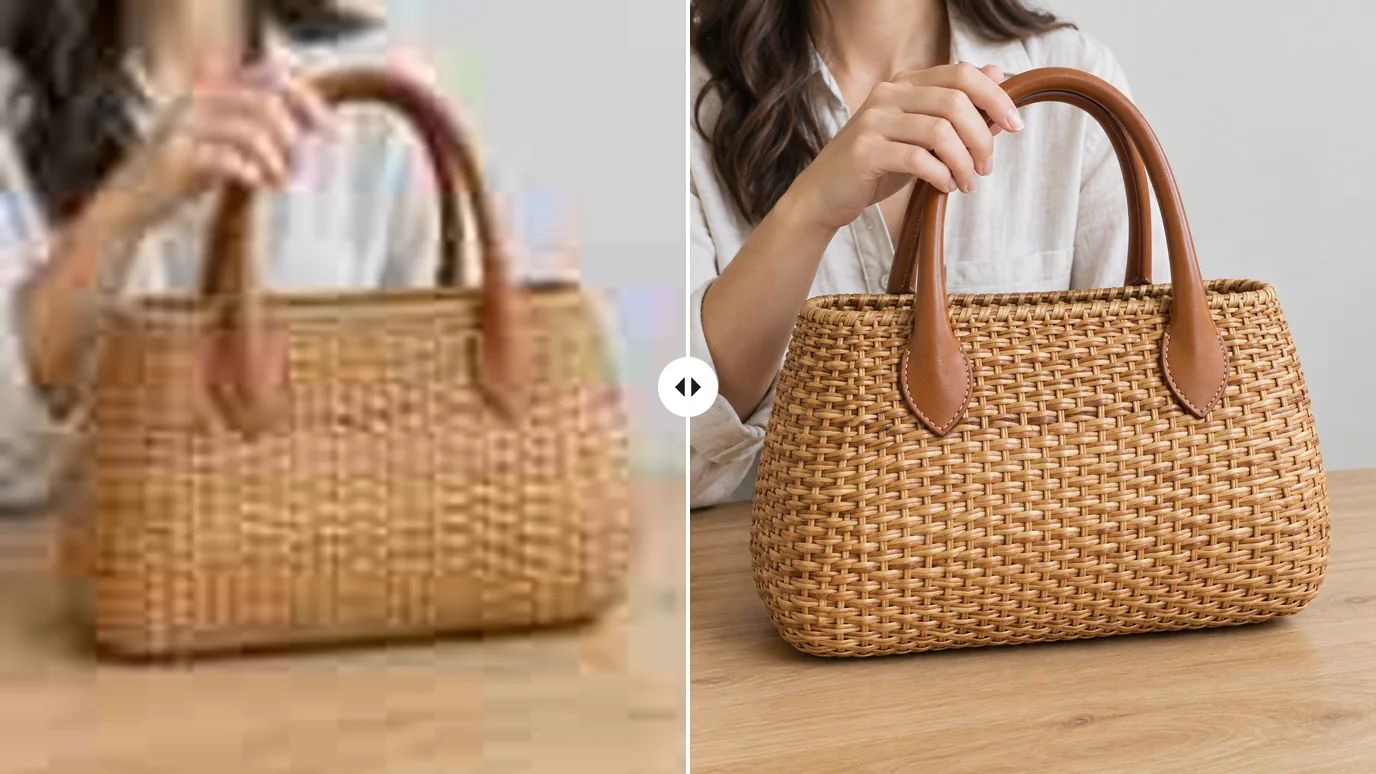
Upscale Illustrations, Anime and Digital Art
Art&Anime mode is made for line art and flat color, so illustrations, anime frames and 3D renders get bigger without photographic grain. Turn a small piece into a desktop wallpaper, a print or a cover, including images you made with the AI image generator.
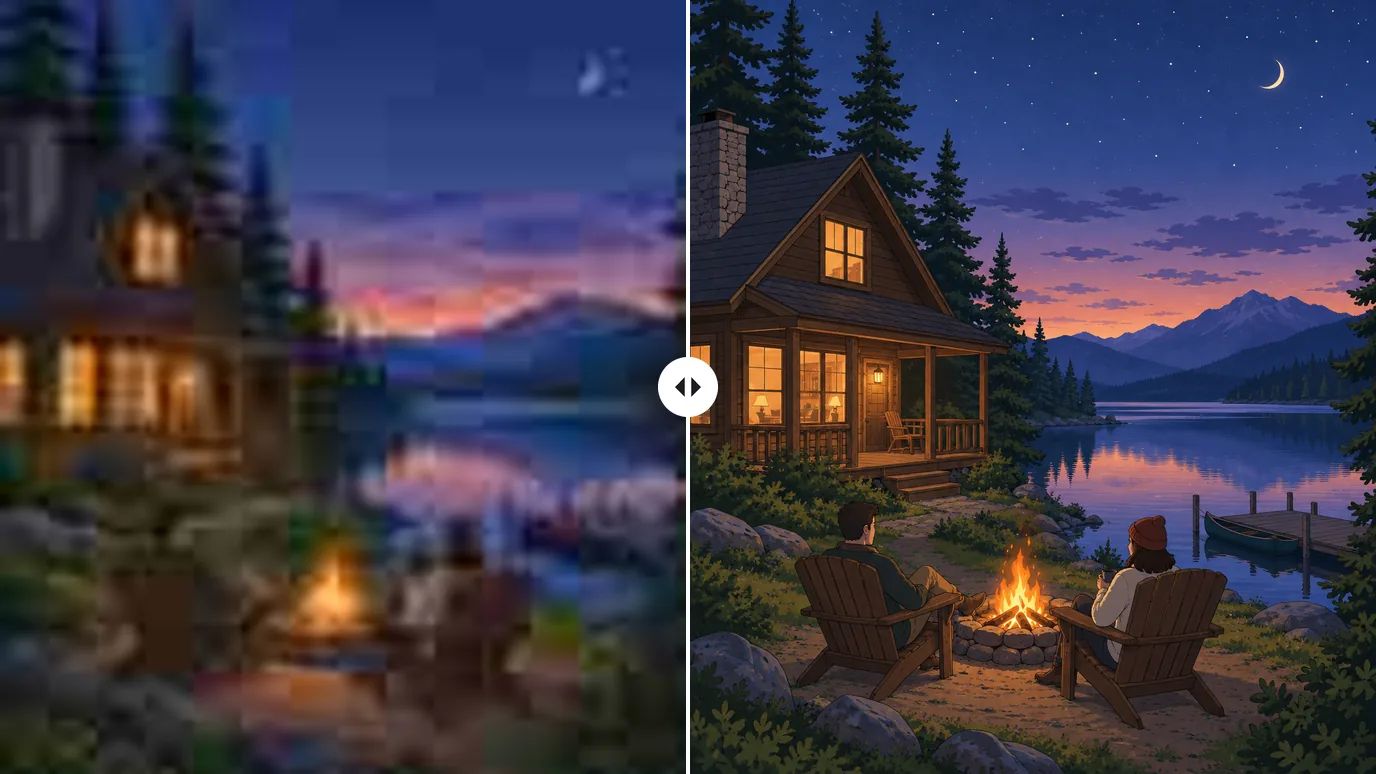
Recover Detail After Cropping
Cropping in on a distant subject, like wildlife or one face in a group, leaves you with a small image. Upscale the crop 4× or 8× to get back a usable size with sharper edges and texture. Need more room around the subject instead? Extend the frame with AI Uncrop.
Who Uses an AI Image Upscaler
Anyone with a picture that is too small for where it needs to go.
Online Sellers
Larger, crisper product photos that hold up when shoppers zoom in.
Prints & Photo Books
Enlarge photos before printing posters, framed prints and albums.
Designers & Artists
Upscale illustrations, renders and AI art for wallpapers, covers and portfolios.
Family Archives
Give small scans and old phone pictures more resolution before you share or reprint them.
How to Upscale an Image
Upload Your Image
Sign in and upload a PNG, JPG or WEBP image up to 10 MB and 4096 pixels on each side.
Choose the Scale and Mode
Pick Original, 2×, 4×, 8× or 16× and the mode that fits your image. Open Settings to fine-tune Sharpen, Denoise and Fix Compression.
Create and Download
The price for your image appears on the Create button. Click it, then download the upscaled result when it's ready.
Explore More AI Image Tools
Need a different fix? Each of these tools does one job well.
Create images from a text prompt with GPT Image 2.5, Nano Banana, Seedream and more.
Use a photo as the reference and generate it again in a new style, light or setting.
FAQs
Give Your Small Images More Pixels
Upload a photo or artwork, pick a scale and a mode, and let Topaz Enhance do the rest.