Grok Imagine AI Image Generator
xAI's image model on MaxH3. Write a prompt or upload one photo to edit or restyle it, and choose from 12 aspect ratio presets.
Discover What Grok Imagine Can Create
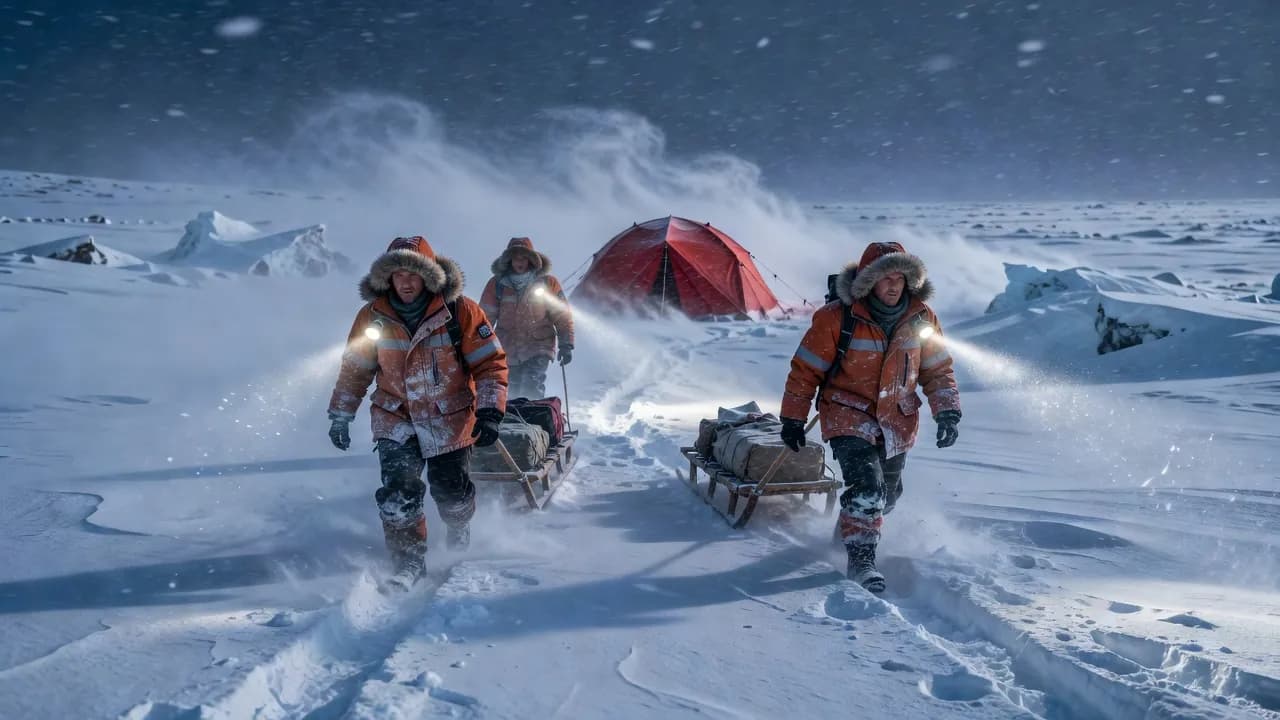
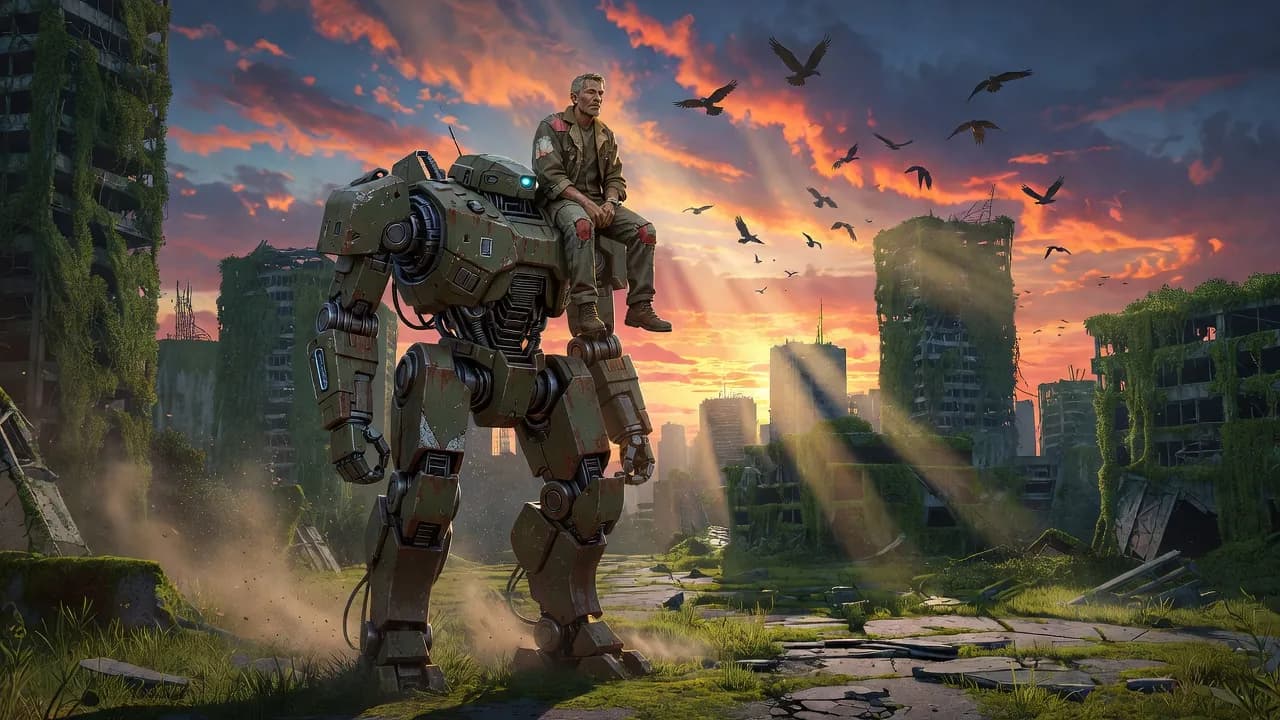
A film poster, a car design board, a product shot, a fashion editorial, an expedition still and game key art. Every image here was generated with Grok Imagine on MaxH3.
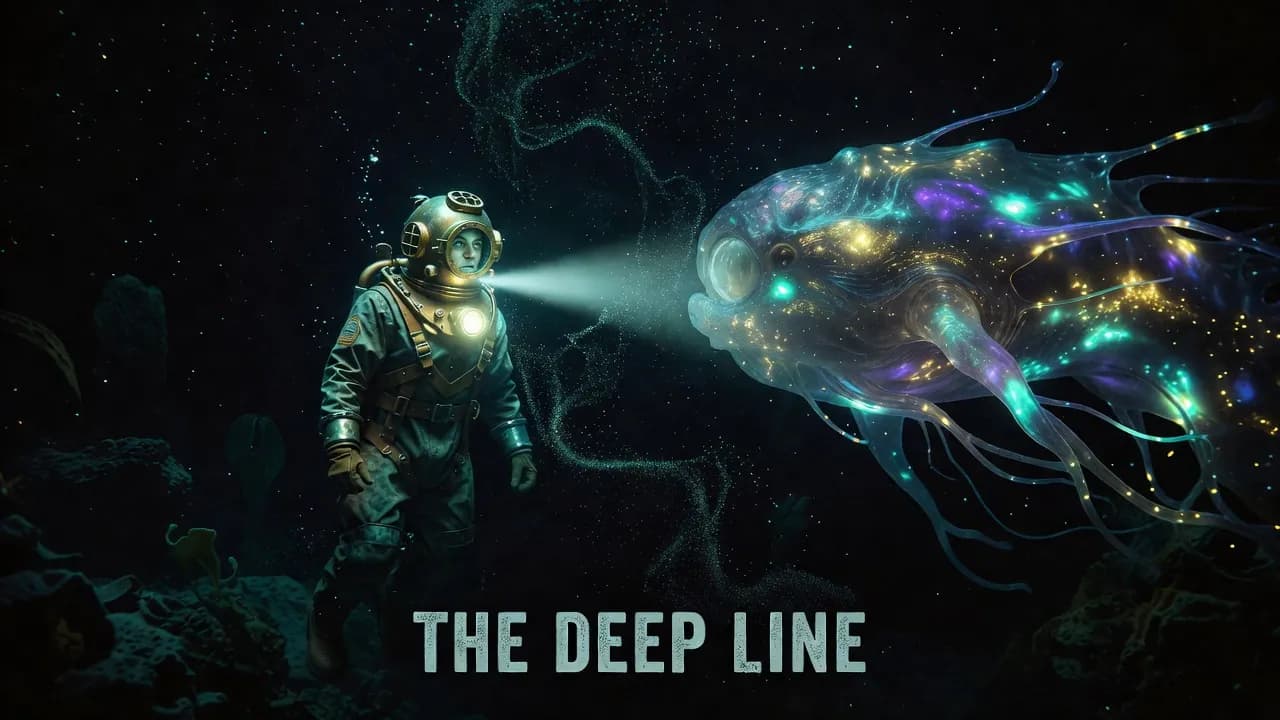
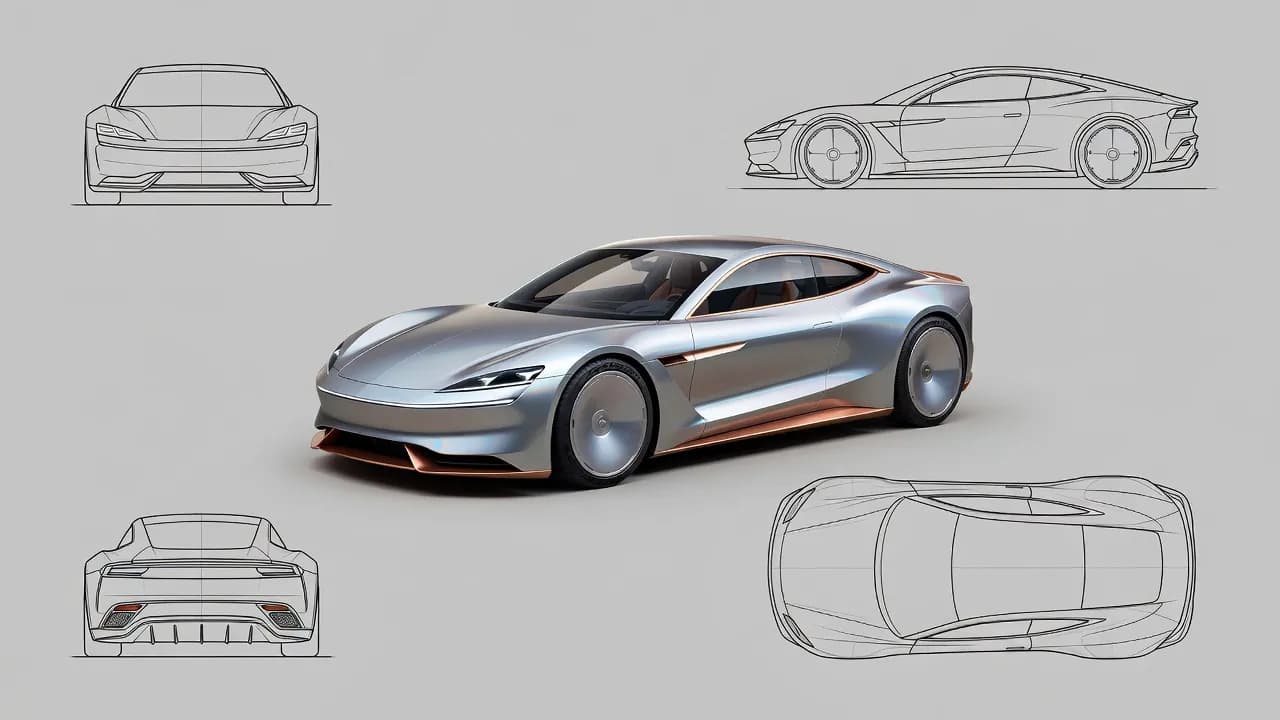
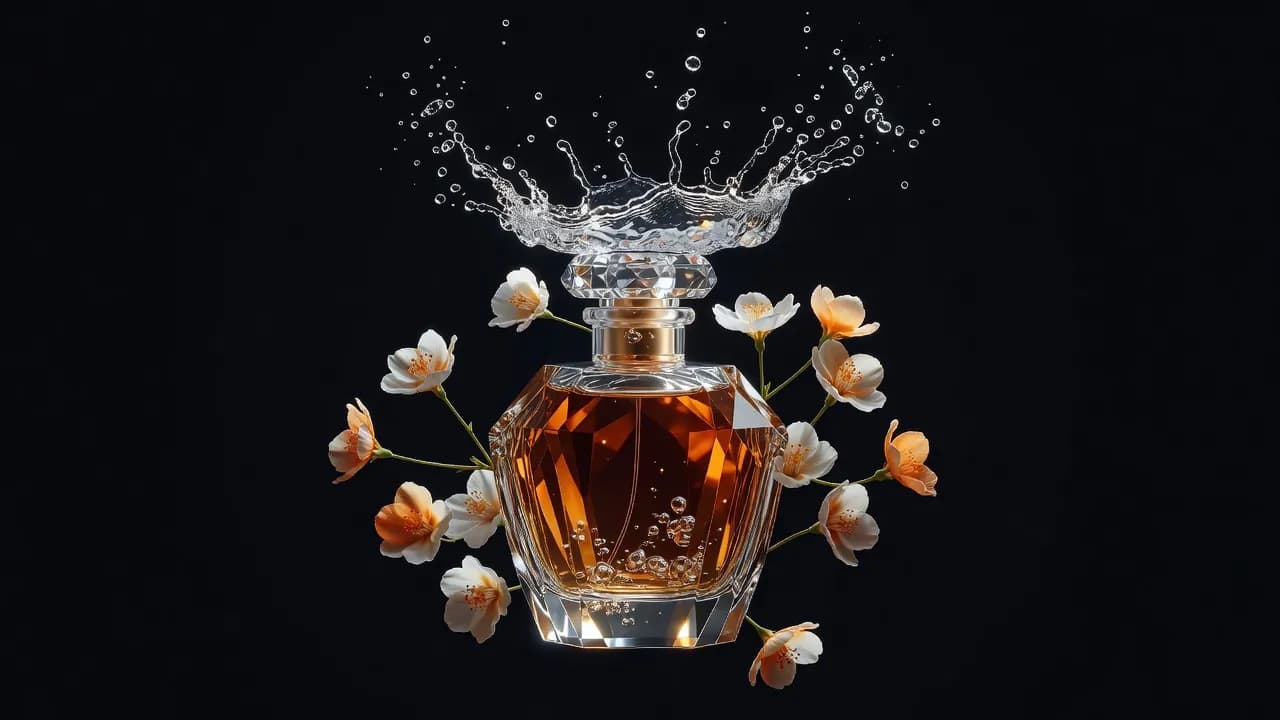
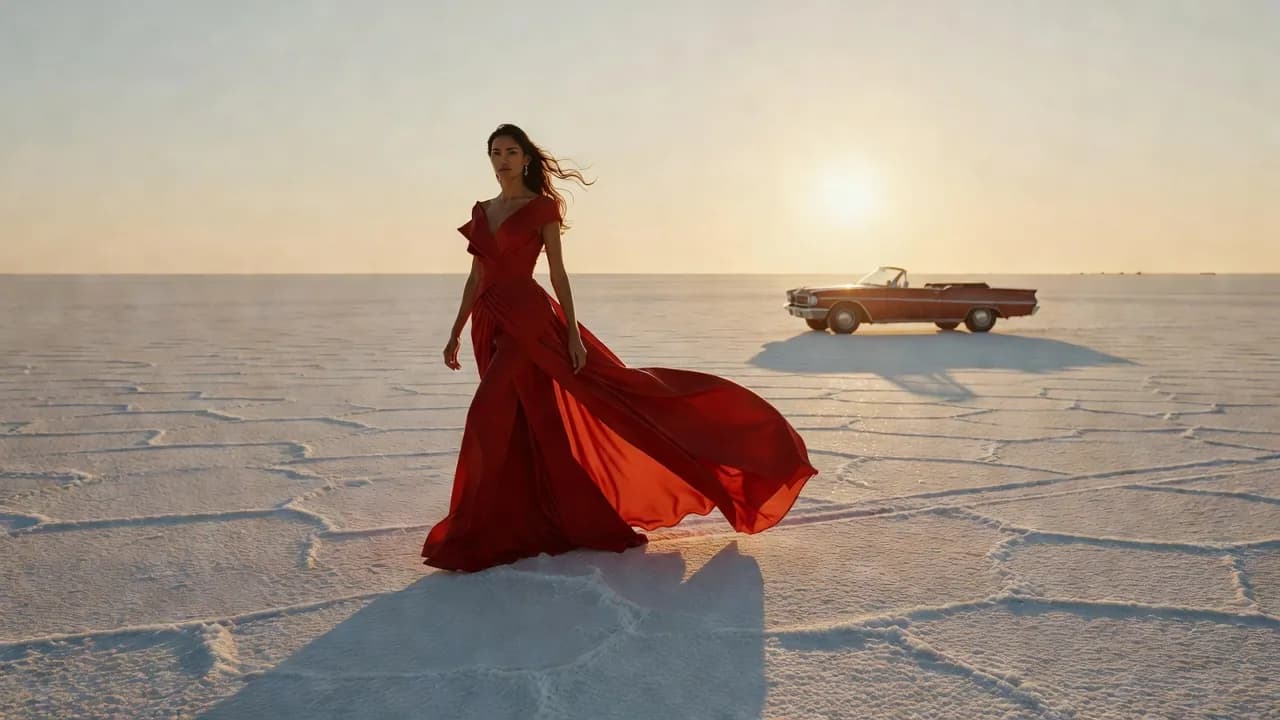
Key Features of Grok Imagine
- Product Placement From a Single Photo: Upload one product shot and describe the scene you want it to live in.
- Sketches and Mockups, Rendered for Real: Turn a pen sketch or a flat mockup into a lit, photoreal render of the same design.
- Change One Detail, Keep Everything Else: Name one attribute, such as a color or a material, and only that part changes.
- Restyle a Photo in One Step: Redraw a whole photo in a new art style while the subject and layout stay put.
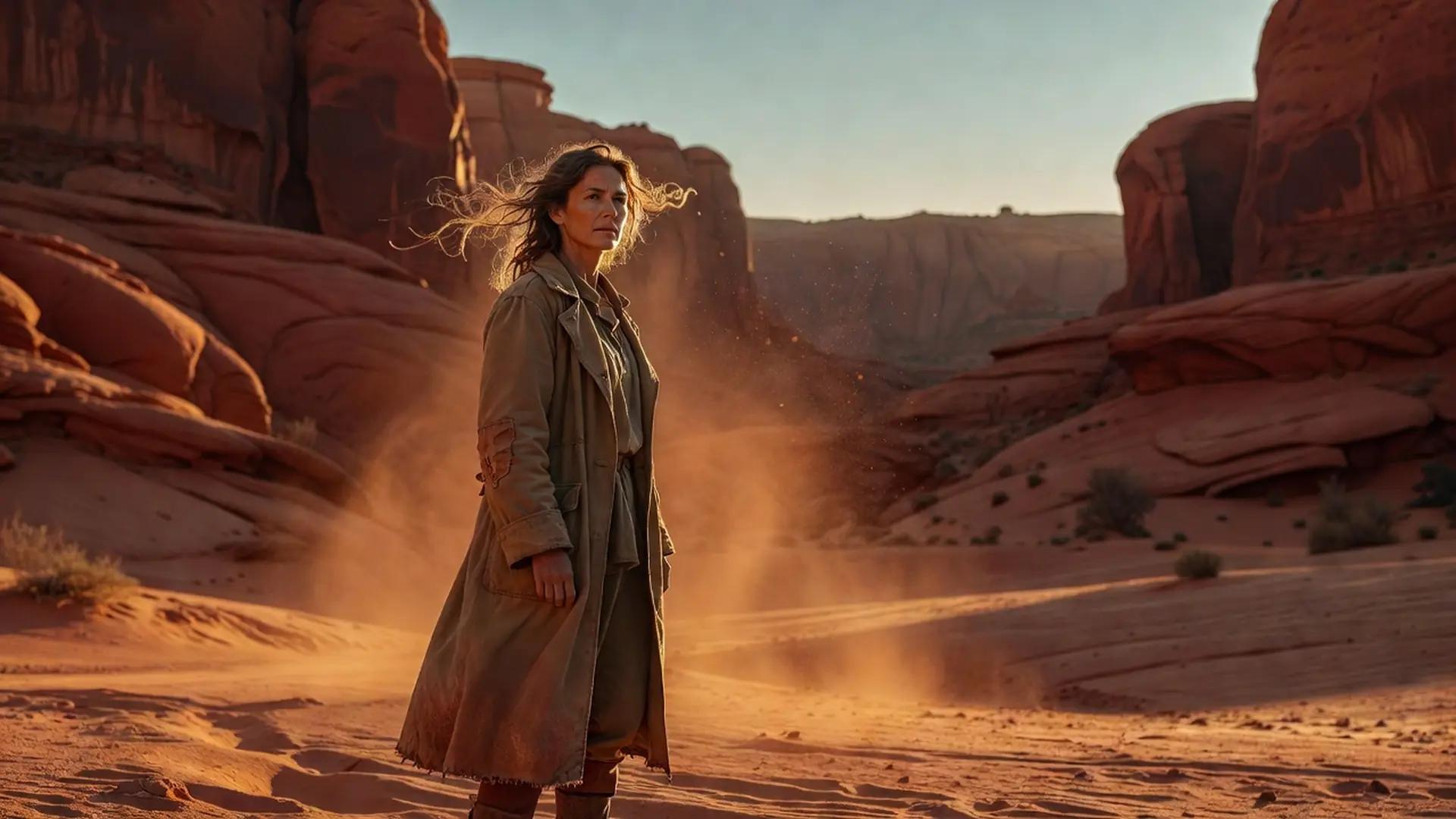
- Scenes That Read Like Film Stills: Rim light, drifting dust and widescreen framing for scenes with a movie feel.
- Build an Image Edit by Edit: Feed each result back in and change one thing per round.
- One Idea, Four Different Looks: Try the same subject as watercolor, low-poly, woodblock print or synthwave.
- Fast Drafts for Quick Iteration: Each image renders in roughly 9 to 14 seconds, so you can try idea after idea.
Product Placement From a Single Photo
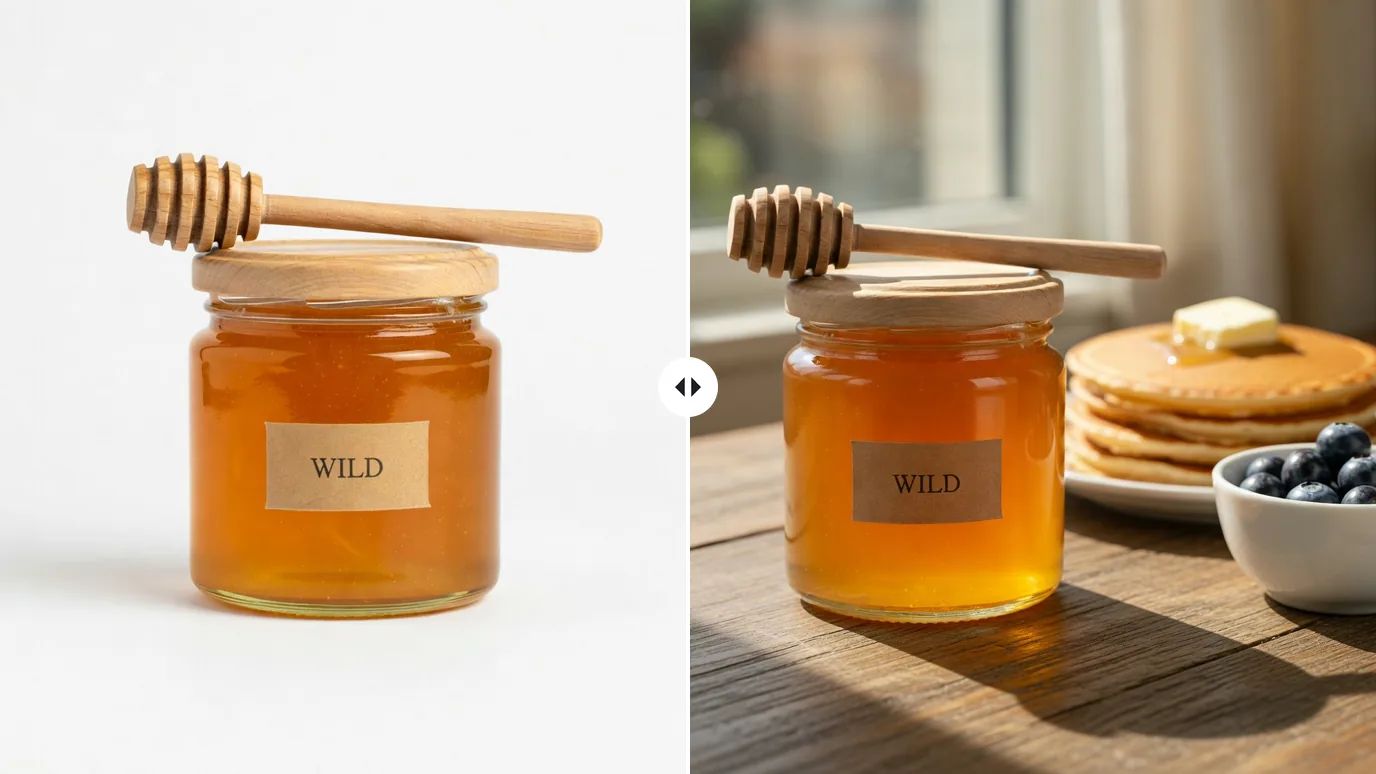
A plain studio packshot of a honey jar, moved onto a sunny breakfast table beside pancakes and blueberries. Product placement is one of the uses xAI puts up front for Grok Imagine. Upload one clear photo of the product, describe the setting, the light and the props, and ask for the jar, lid and label to stay as they are.
Sketches and Mockups, Rendered for Real
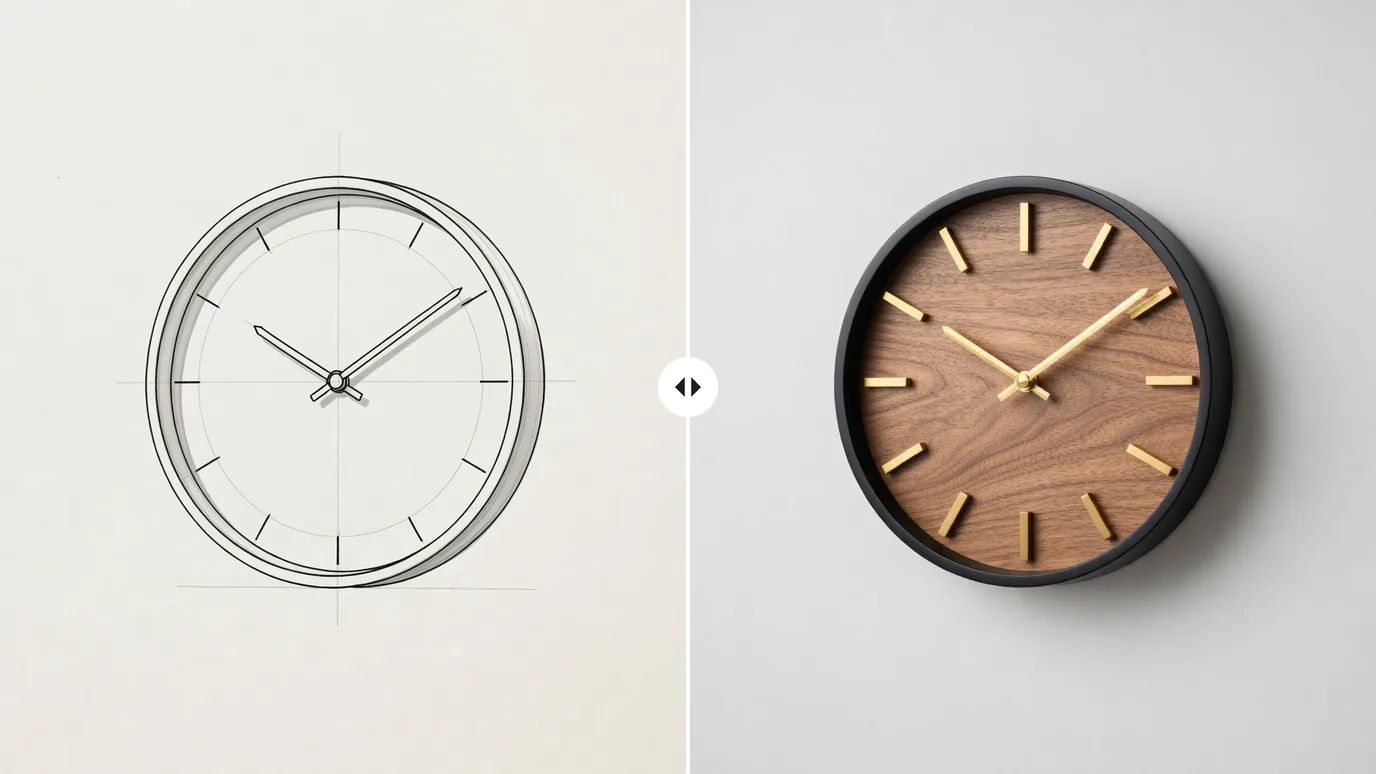
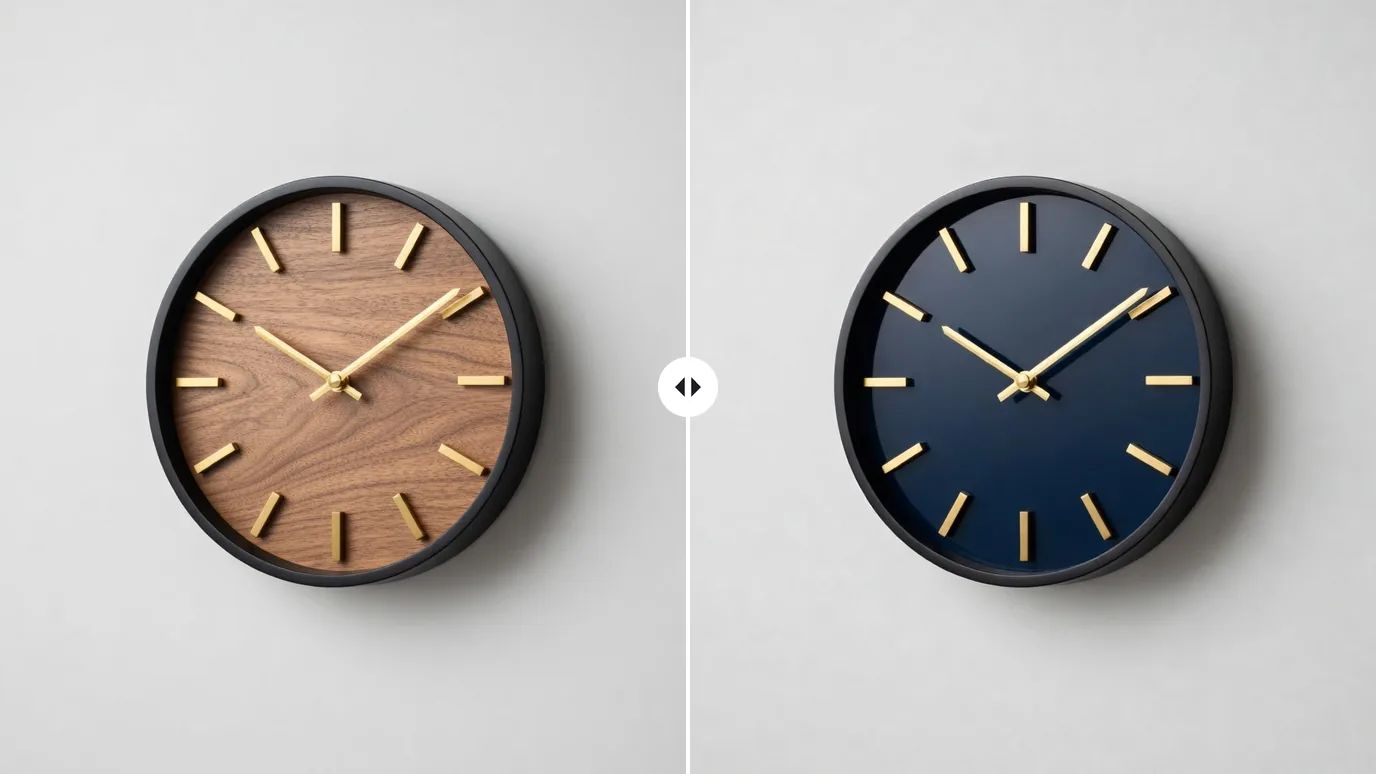
A fineliner sketch of a wall clock, rendered as a studio shot with a walnut face, a matte black rim and brass hands. xAI presents turning mockups into realistic images as a headline Grok Imagine skill. Upload the drawing, name the materials, the finish and the backdrop, and ask it to hold the shape, the proportions and the viewing angle.
Change One Detail, Keep Everything Else
The same clock, rim, hands and shadow, with one difference: the walnut face became deep navy lacquer. xAI describes Grok Imagine's edits as aimed at a single attribute while the rest of the picture is left alone. Say exactly what to change, list what must stay, and build a full set of colorways from one approved render.
Restyle a Photo in One Step
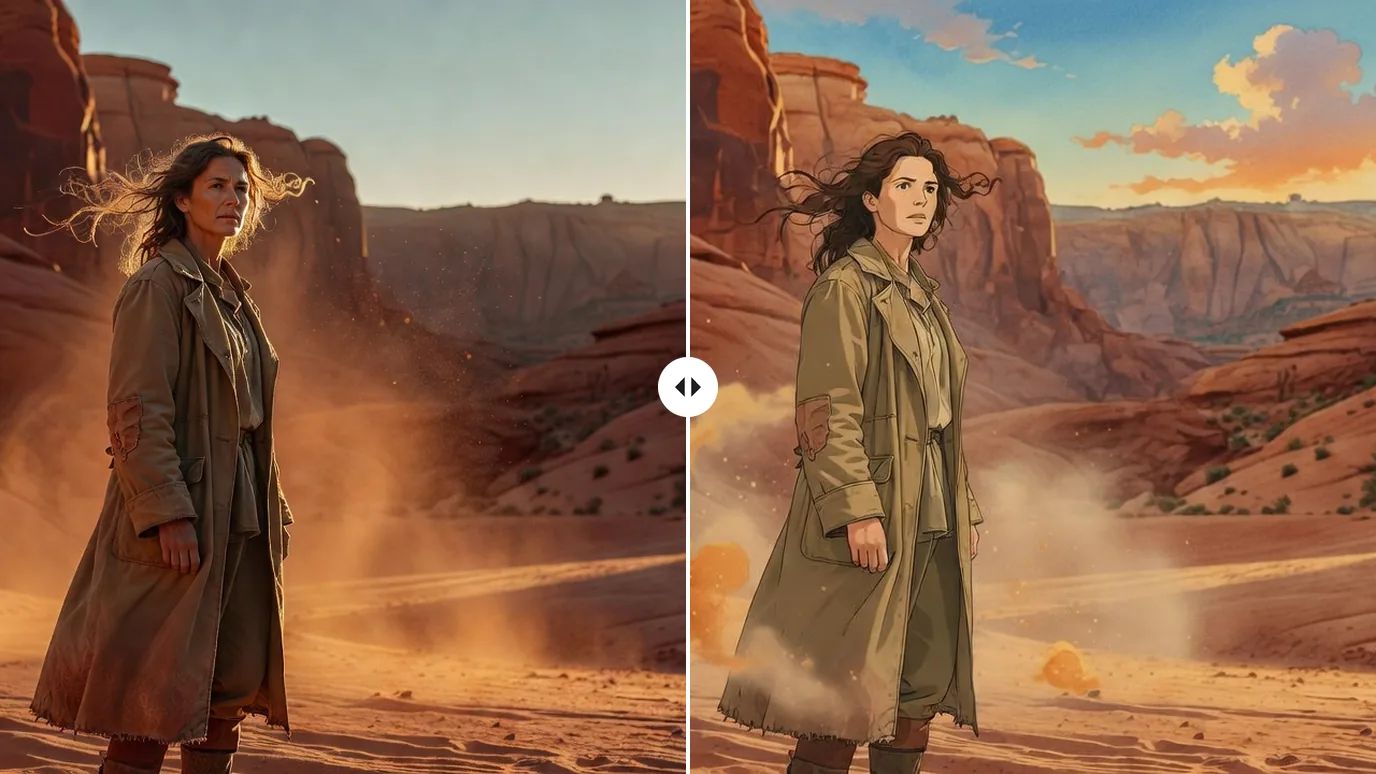
One sentence turned the canyon photo into a hand-painted anime frame, with the same wanderer, the same pose and the same rock walls behind her. Style transfer is one of the edits xAI lists for Grok Imagine. Upload one image, name the look you want, such as watercolor, comic or oil paint, and say what should not move.
Scenes That Read Like Film Stills
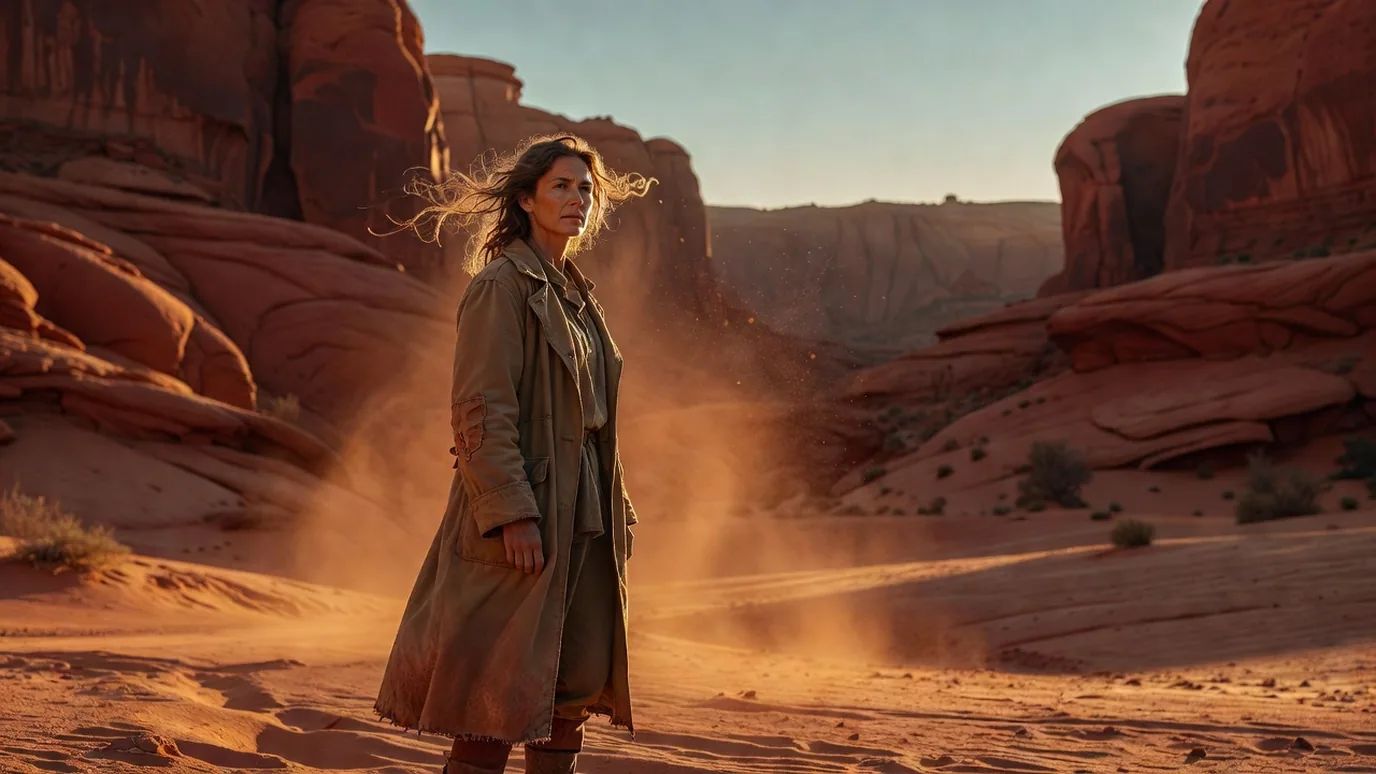
Rim light, blowing dust and a weathered coat give this canyon scene the look of a frame from a film. Describe the character, the setting and the camera, such as anamorphic widescreen or film grain, then pick 16:9 or the extra-wide 20:9 for a cinematic frame, or 9:20 when the same mood has to fill a tall poster.
Build an Image Edit by Edit
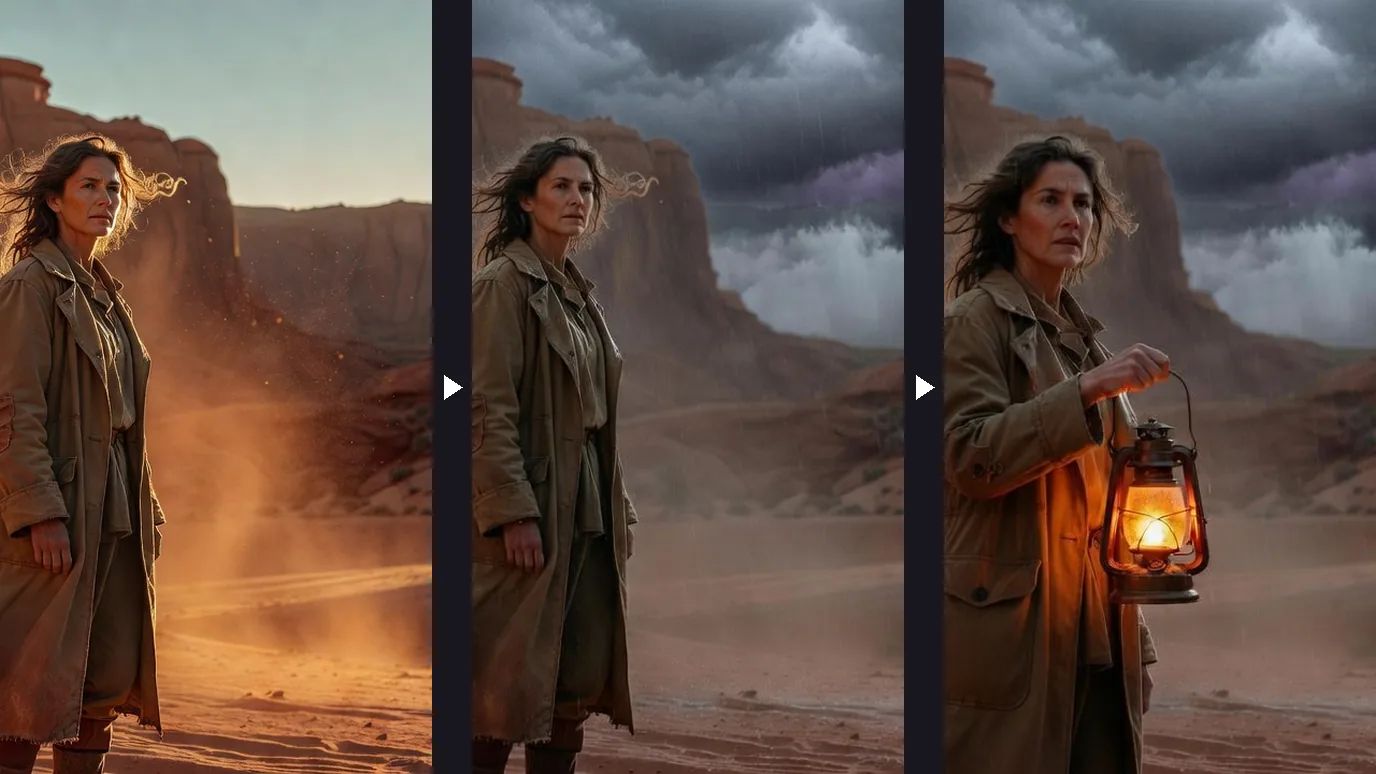
First a storm rolled in, then she lifted a glowing lantern: two edits, each one starting from the result before it. xAI's guidance covers chaining several edits in a row like this. Asking for one change per round keeps every step easy to check, and when a round misses, you redo that single step instead of starting the image over.
One Idea, Four Different Looks
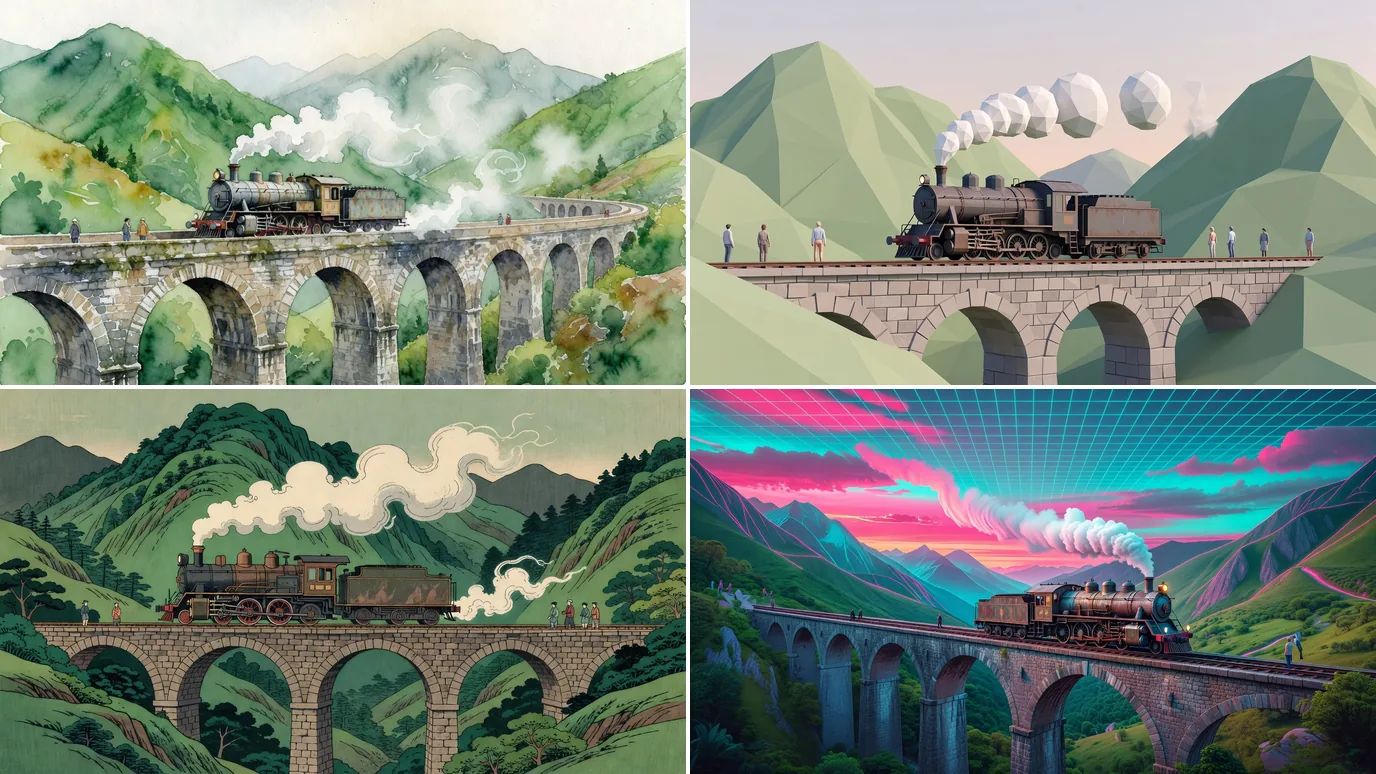
The same steam train on the same stone viaduct as a watercolor, a low-poly render, a woodblock print and a synthwave poster. Keep the subject sentence identical and swap only the style words, so you can compare looks side by side before you settle on one for a cover, a post or a print.
Fast Drafts for Quick Iteration
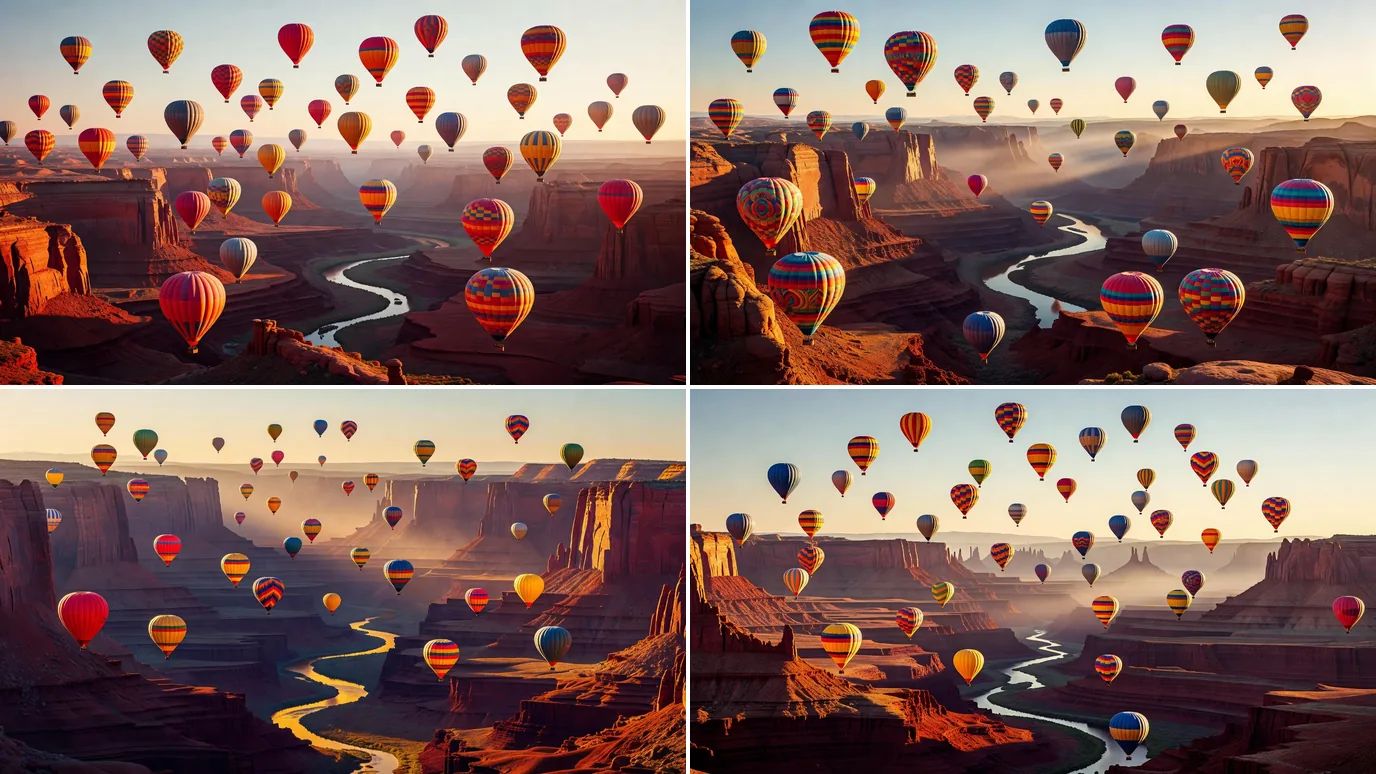
Four takes on one prompt, hot-air balloons over a red-rock canyon at sunrise, each with its own composition. In our test, Grok Imagine spent about 9 to 14 seconds rendering each one, so a handful of variations takes about a minute rather than an afternoon. Run the same prompt a few times, keep the frame you like best, and refine from there.
What Sets Grok Imagine Apart
- From Packshot or Sketch to Scene: Product placement and mockup-to-render are skills xAI leads with, so one product photo or one drawing is all you need to start a finished visual.
- Edits That Stay in Their Lane: Name one attribute and only that part changes, then chain the next edit onto the result without redoing what already works.
- Nothing to Tune: There are no resolution or quality dials: write a prompt, pick one of 11 ratios or Auto, and run it on your free signup credits.
How to Use Grok Imagine on MaxH3
Open Grok Imagine
Grok Imagine is already selected in the generator above. Add reference images there to start from a photo.
Describe the Image
Describe the subject, style and light, quote any on-image text, then pick the ratio and resolution.
Generate and Download
Press the arrow. The result shows right here, ready to download or refine, and stays in your history.
FAQs
Turn One Photo Into a Finished Visual
Write a prompt, or upload a packshot, a sketch or a snapshot to edit. Your first credits are on us.