Inpaint

Replace Anything in a Photo with AI Inpainting
Brush over the part of an image you want to change, describe what should go there, and MaxH3's AI inpaint paints it into the brushed area so it blends with the rest of the scene. Swap a vase for a plant, add a boat to an empty pier or try a new color on a sofa. Everything outside your brush is kept, and the photo keeps its original resolution. To erase something without putting anything in its place, use the object remover instead.
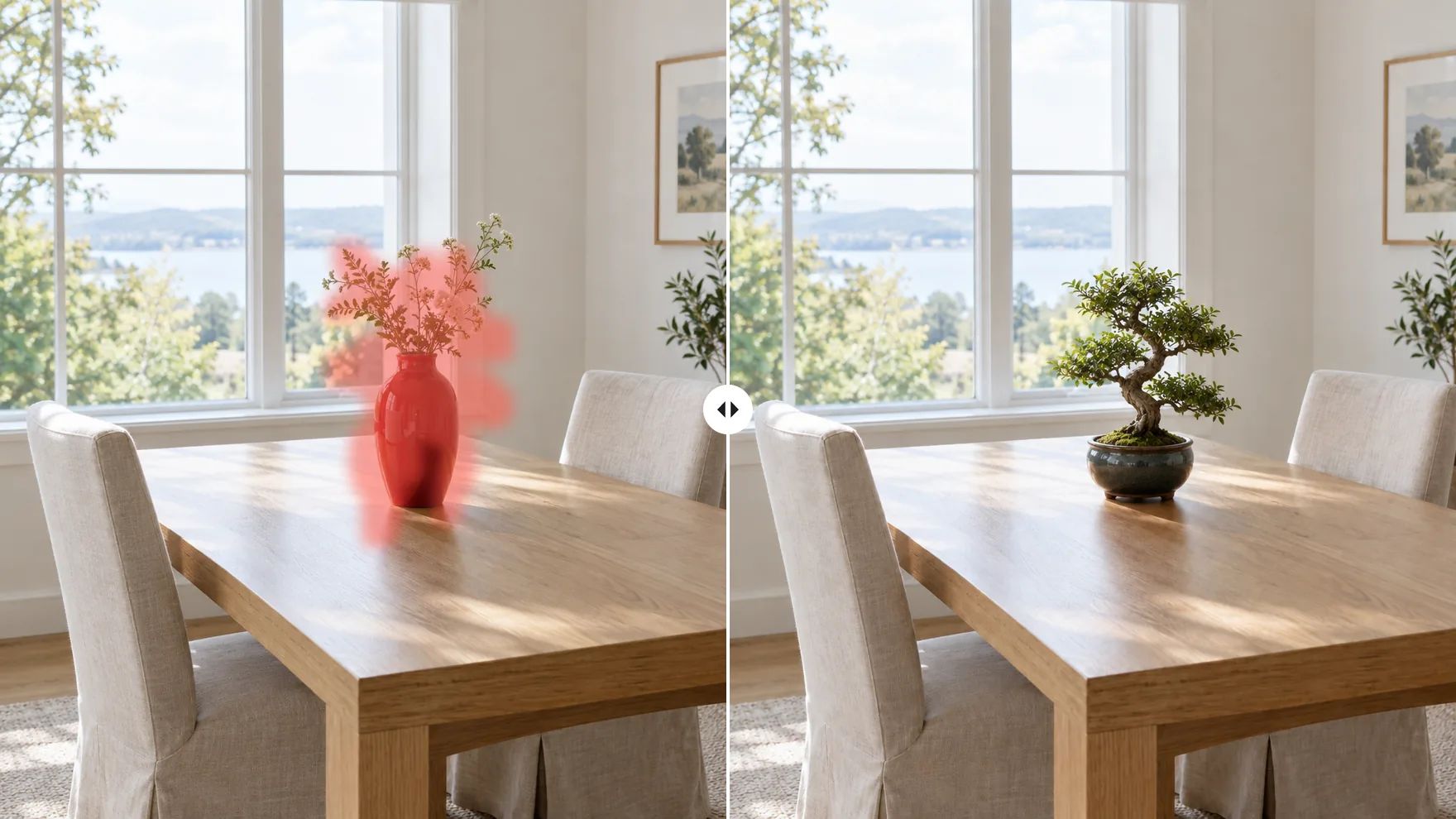
Change Any Part of an Image with a Brush and a Prompt
Mark the area, say what you want there, and leave the rest of the photo alone.
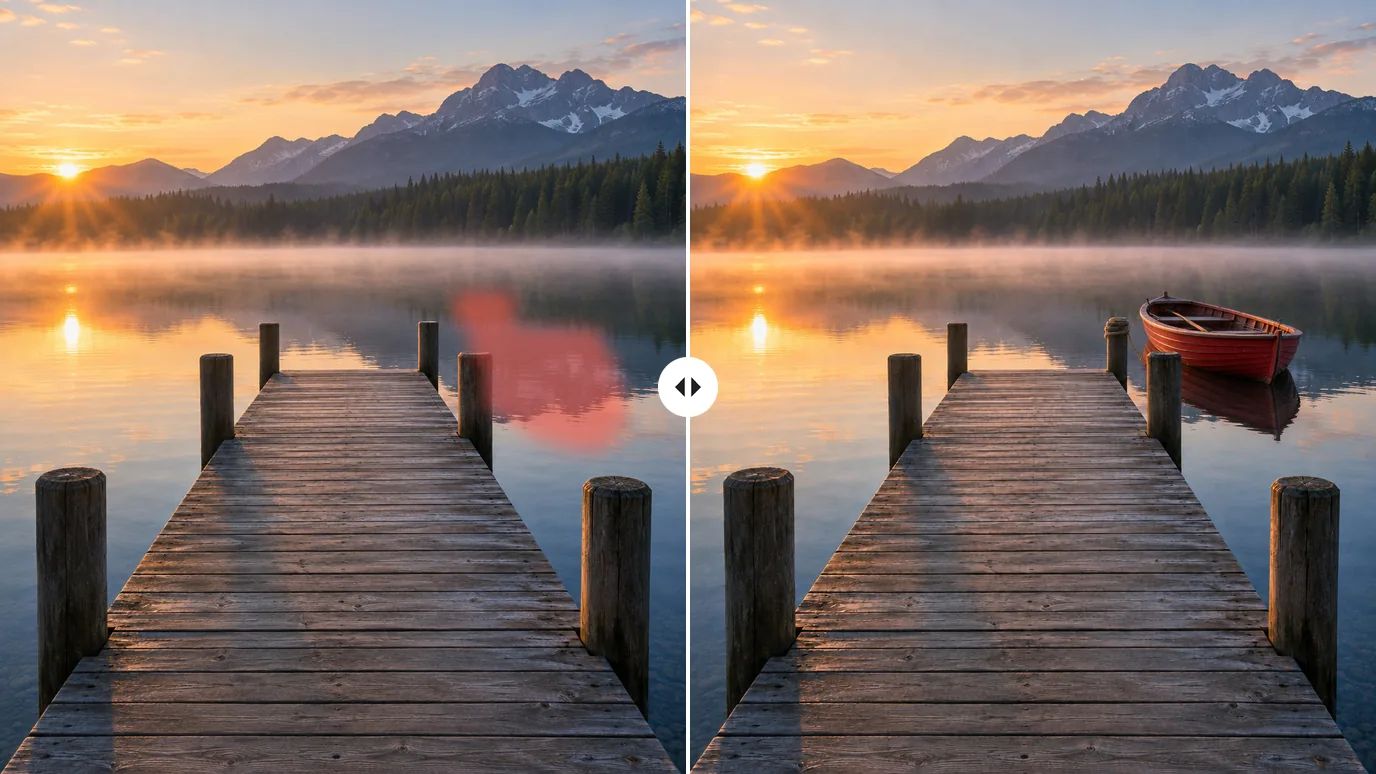
Add New Objects to Any Photo
Brush an empty spot and describe what belongs there: a boat at the end of a pier, a lamp on a side table, a bird on a branch. The new object is painted into the area you marked, and the rest of the scene stays as it was.
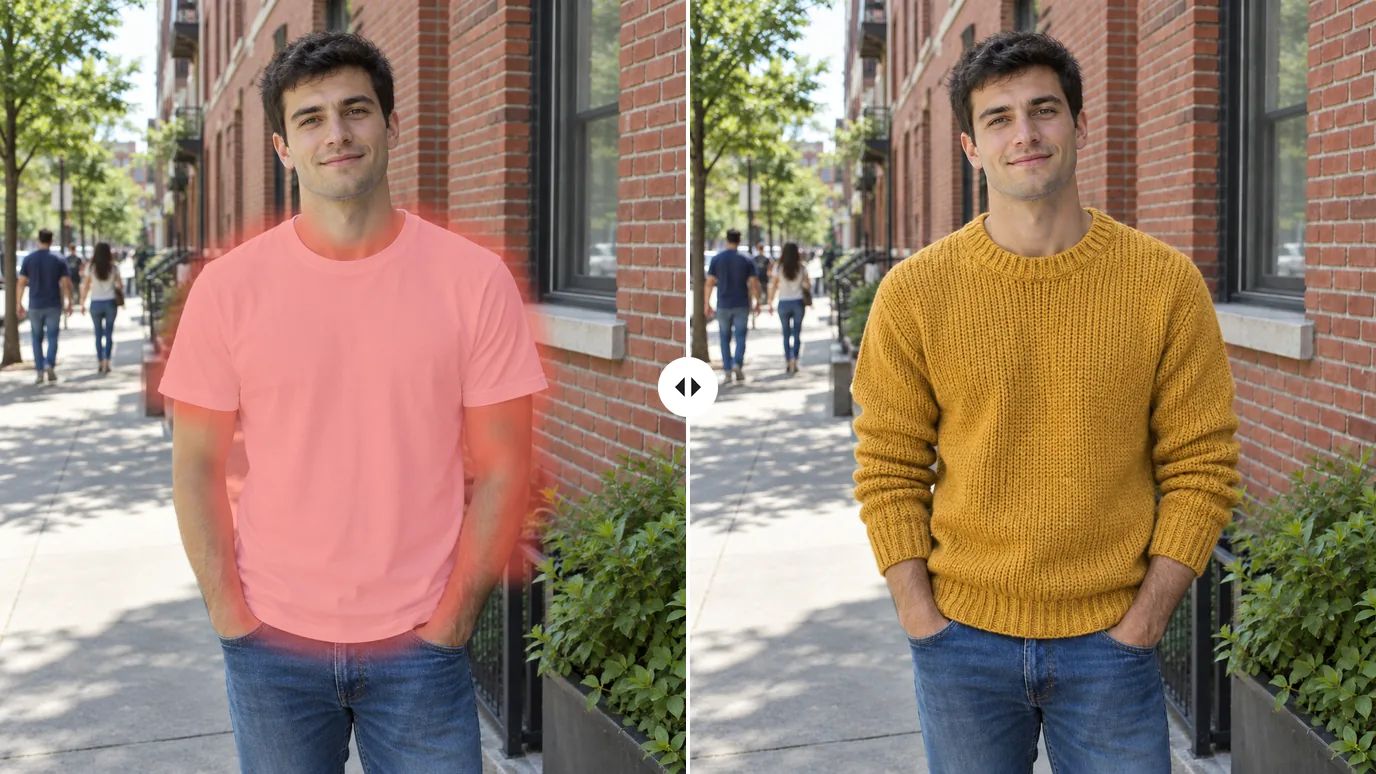
Change Clothes and Accessories
Try a different shirt, jacket or hat on the same photo. Brush over the garment, describe the new one with its color and material, and generate. Only the brushed area is repainted, so the face and the pose stay the same.
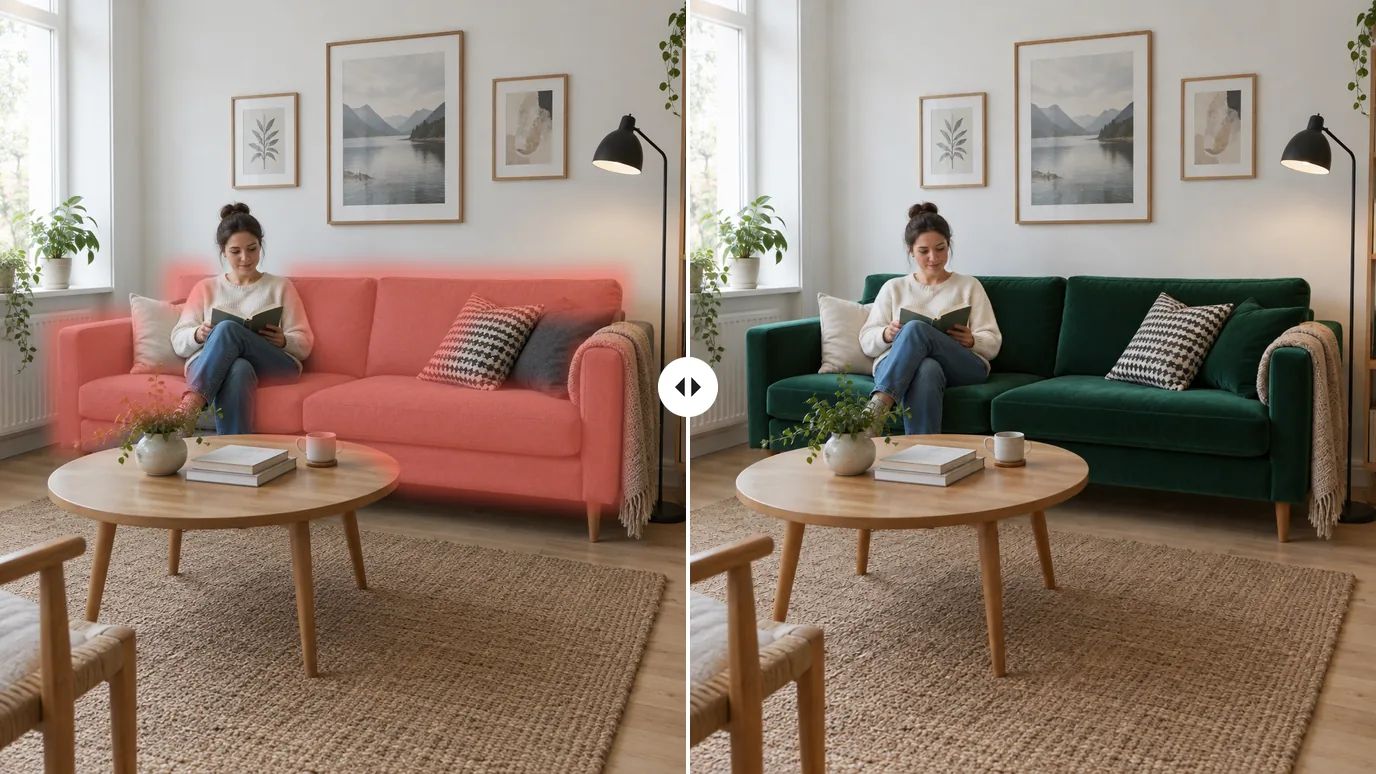
Try New Colors and Materials in a Room
See a grey sofa in green velvet, a white wall in terracotta or a pine floor in dark oak before you buy anything. Brush the surface, name the new color or material in your prompt, and compare the result with the original.
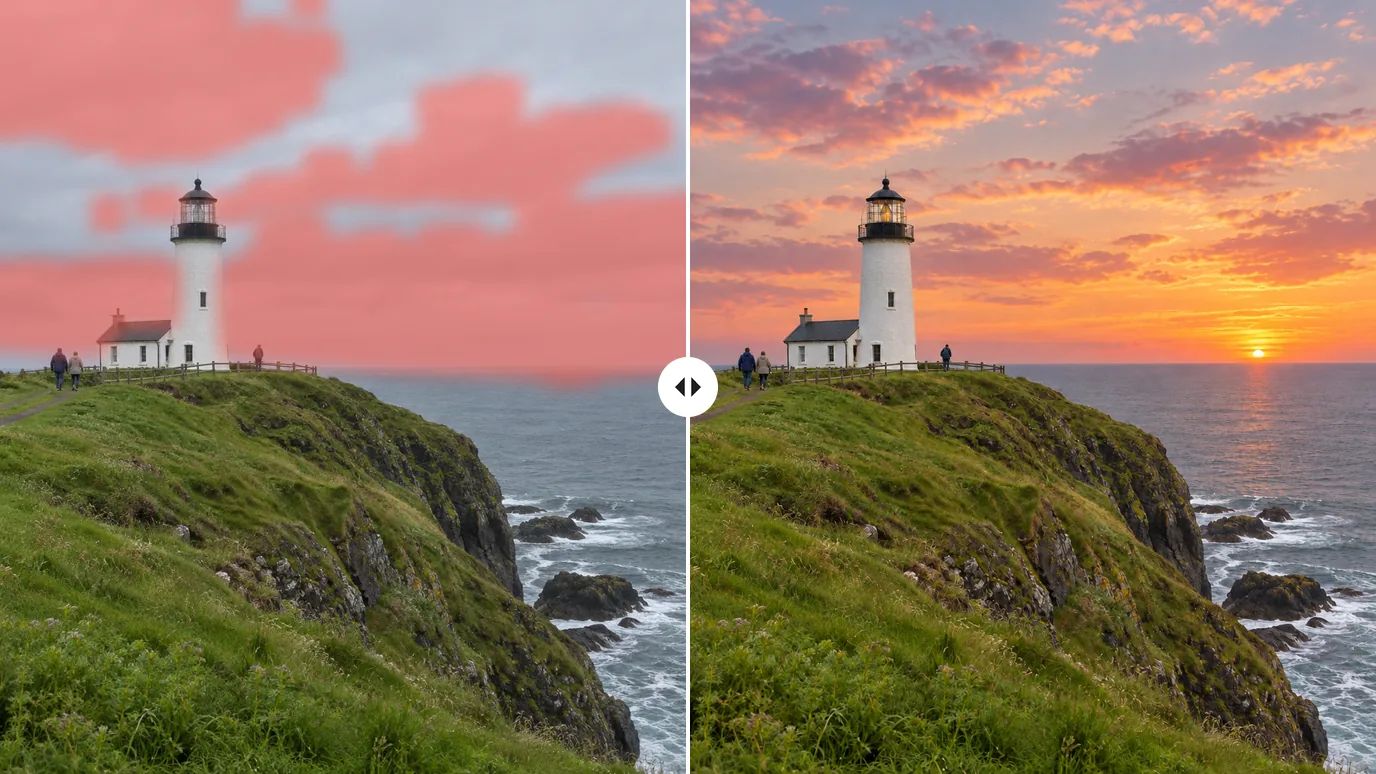
Replace the Sky in Landscape Photos
Turn a flat grey sky into a sunset or a clear blue day by brushing over it and describing the sky you want. To replace everything behind a person or product in one go, the AI background changer does it from a prompt, without a brush.
Who Uses AI Inpainting
Anyone who likes a photo but wants one part of it to be different.
Online Sellers
Swap props, colors and details in product photos to try variations without a reshoot.
Designers & Marketers
Adjust one element of a campaign image or mockup while the rest of the layout stays fixed.
Interiors & Real Estate
Preview new furniture, colors and finishes in a photo of the real room.
Social Media Creators
Fix the one detail that bothers you, or add a playful touch, before you post.
How to Inpaint an Image
Upload Your Image
Sign in and upload a PNG, JPG or WEBP image.
Brush the Area and Describe It
Paint over the part you want to change, a little past its edges, with a brush from 10 to 200 pixels. Fix the mask with the eraser, undo, redo or clear, then write in the prompt what should appear there.
Generate and Download
Click Create. The brushed area is repainted to match your prompt; download the result when it's ready.
Explore More AI Image Tools
Need a different fix? Each of these tools does one job well.
Create images from a text prompt with GPT Image 2.5, Nano Banana, Seedream and more.
Use a photo as the reference and generate it again in a new style, light or setting.
FAQs
Change What You Want, Keep the Rest
Brush an area, describe it, and MaxH3 paints it in.