Background Remover

Background remover before and after: a sneaker on a smoky backdrop, then cut out on a transparent background

Remove the Background from Any Photo in One Click

Upload a photo of a person, a pet or a product, click Create, and MaxH3's AI background remover separates the subject from everything behind it. You get a PNG with a fully transparent background, ready to drop onto a new color, scene or layout. No prompt, no brush, no tracing by hand.
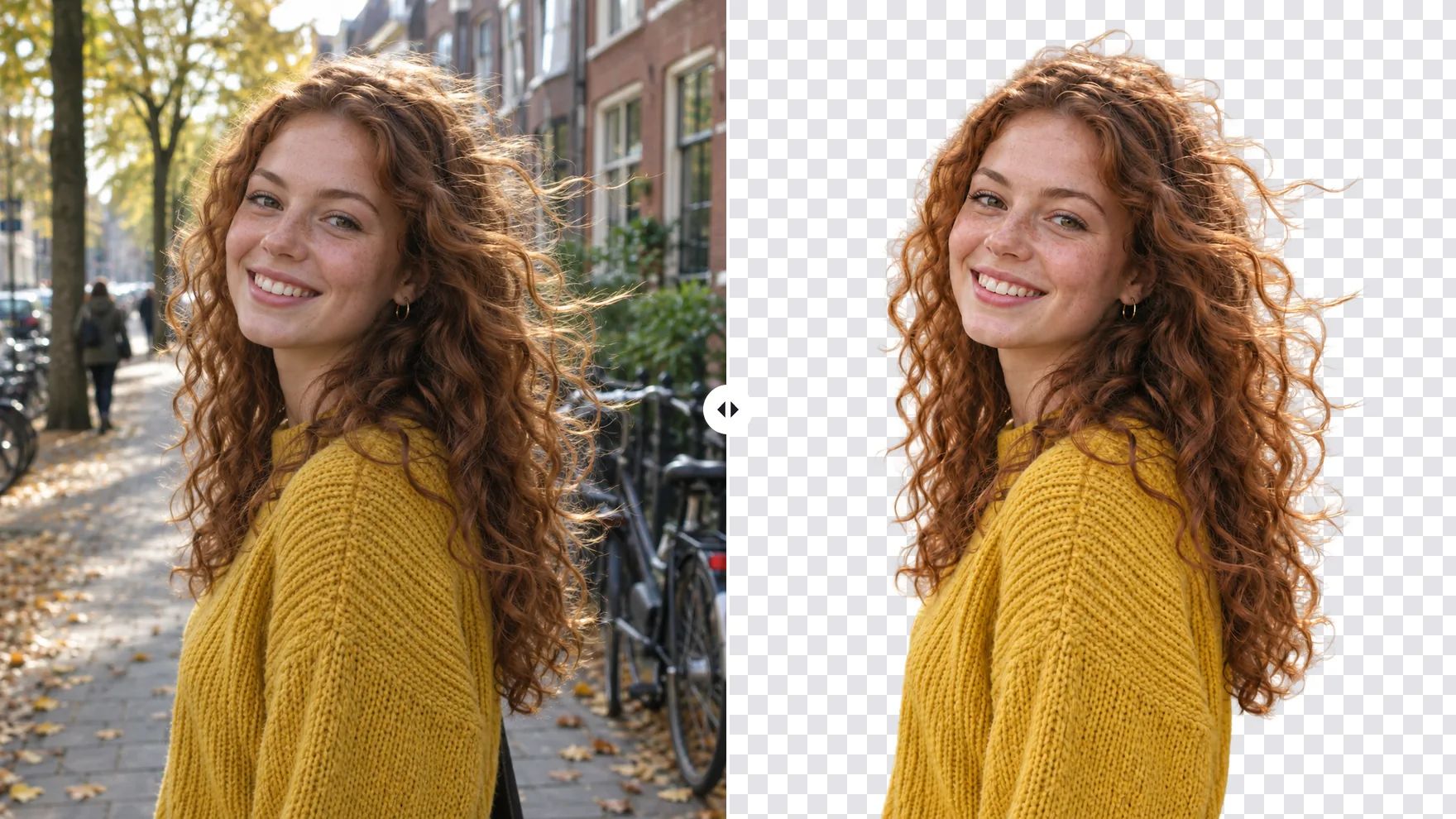
Before and after: a woman with curly, windblown hair on a city street, then the same woman cut out on a transparent background

Remove Backgrounds from People, Pets and Product Photos

One upload, one click: a clean cutout for your store, your profile or your next design.

Remove the Background from Product Photos

Shoot the product on a workbench, a counter or a shelf, and cut it out afterwards. Place the transparent PNG on the white background your marketplace asks for, or on a banner or catalog page. If you would rather show the product in a styled scene, the AI background changer replaces the background from a text prompt.
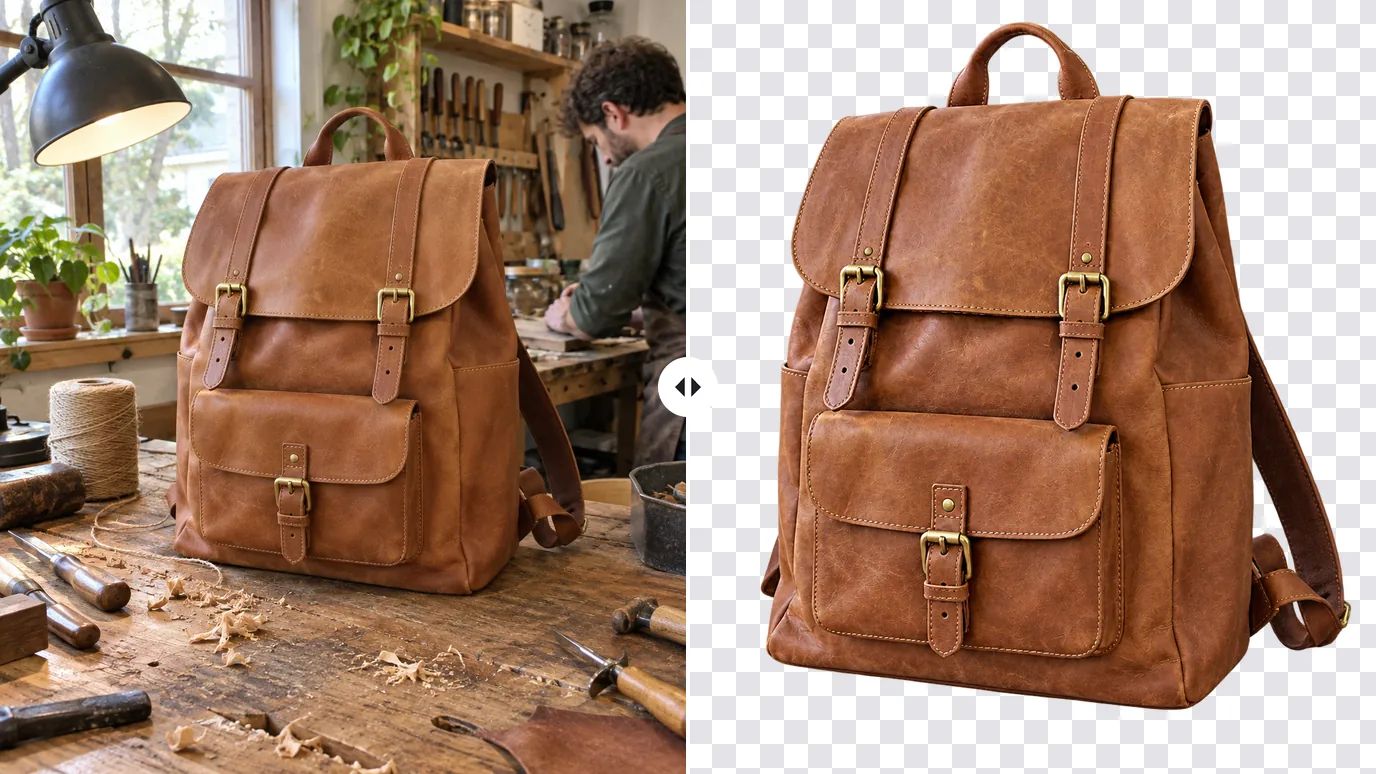
Before and after: a tan leather backpack on a cluttered workbench, then the backpack alone on a transparent background

Remove Pet Photo Backgrounds, Fur and All

Fur and loose hair are the hardest parts to select by hand. The background remover keeps soft edges as partial transparency instead of cutting them to a hard line, so your dog or cat looks at home on a new background, a greeting card or a sticker.
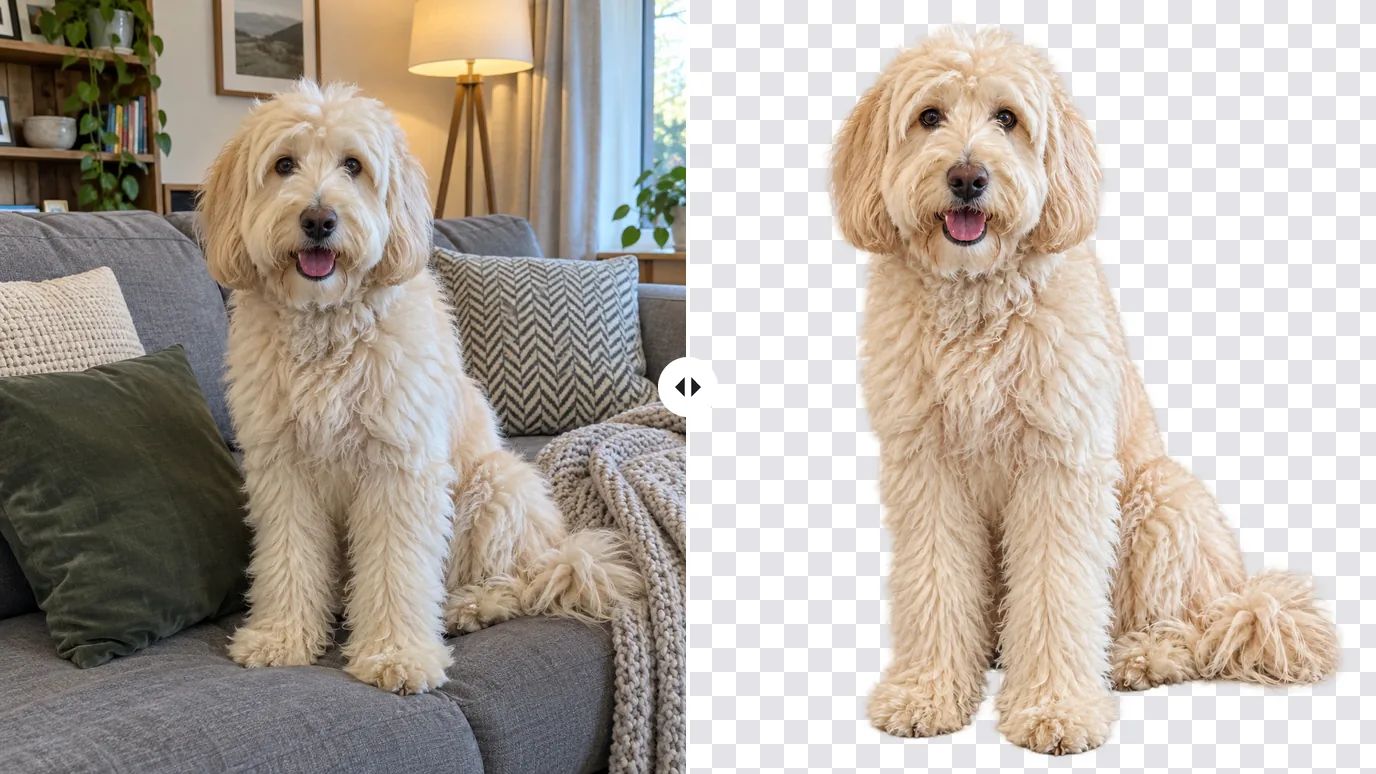
Before and after: a fluffy dog sitting on a living-room sofa, then the dog cut out on a transparent background

Cut Out Detailed Shapes Without Tracing

Bicycles, chairs, plants and tools are full of thin parts and gaps that take ages to outline with a pen tool. Here the AI makes the selection for you from a single upload, so you can skip the tracing and go straight to the layout.
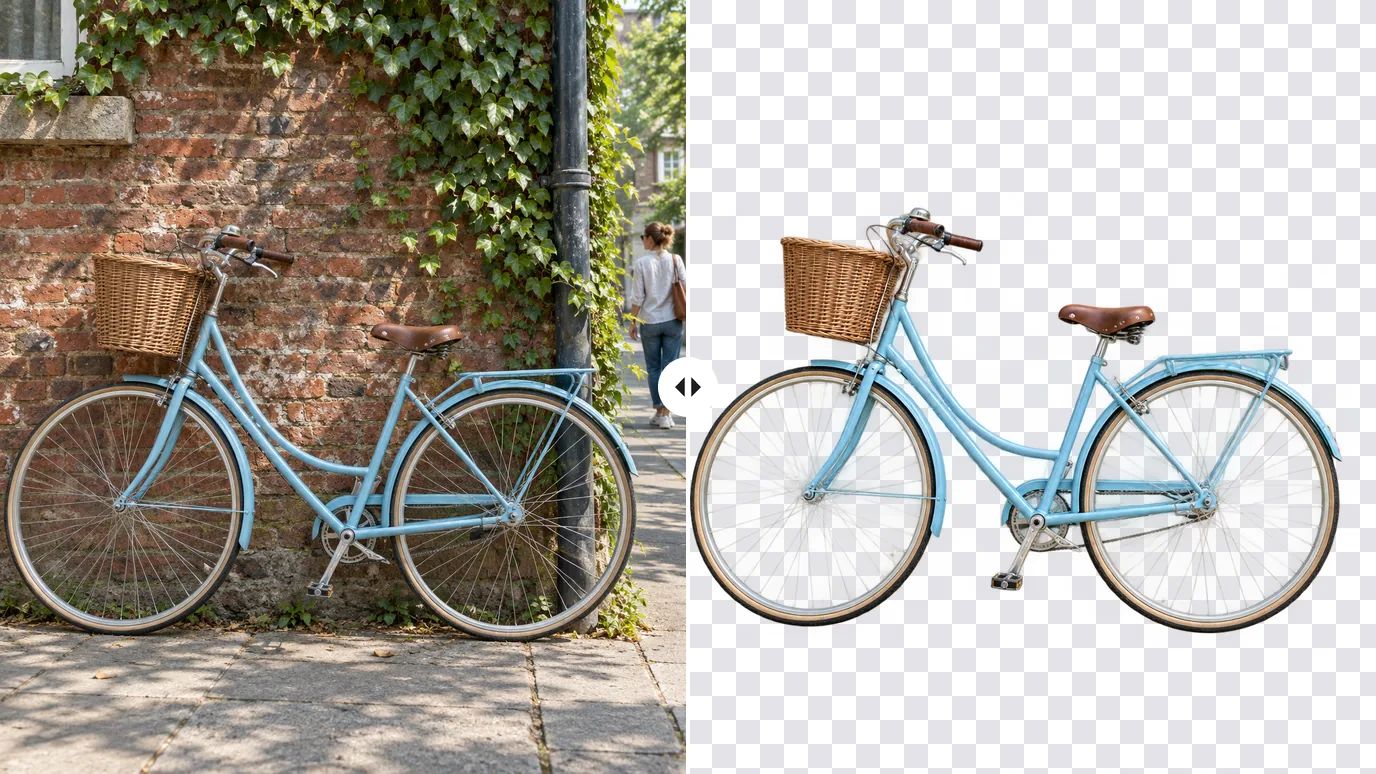
Before and after: a vintage bicycle leaning against a brick wall, then the bicycle cut out on a transparent background

Make Transparent PNGs for Designs and Mockups

A cutout is the starting point for thumbnails, collages, slide decks, moodboards and print-on-demand stickers. Download the subject as a transparent PNG and place it in any design tool. If the original photo is small, enlarge it with the image upscaler before you remove the background.
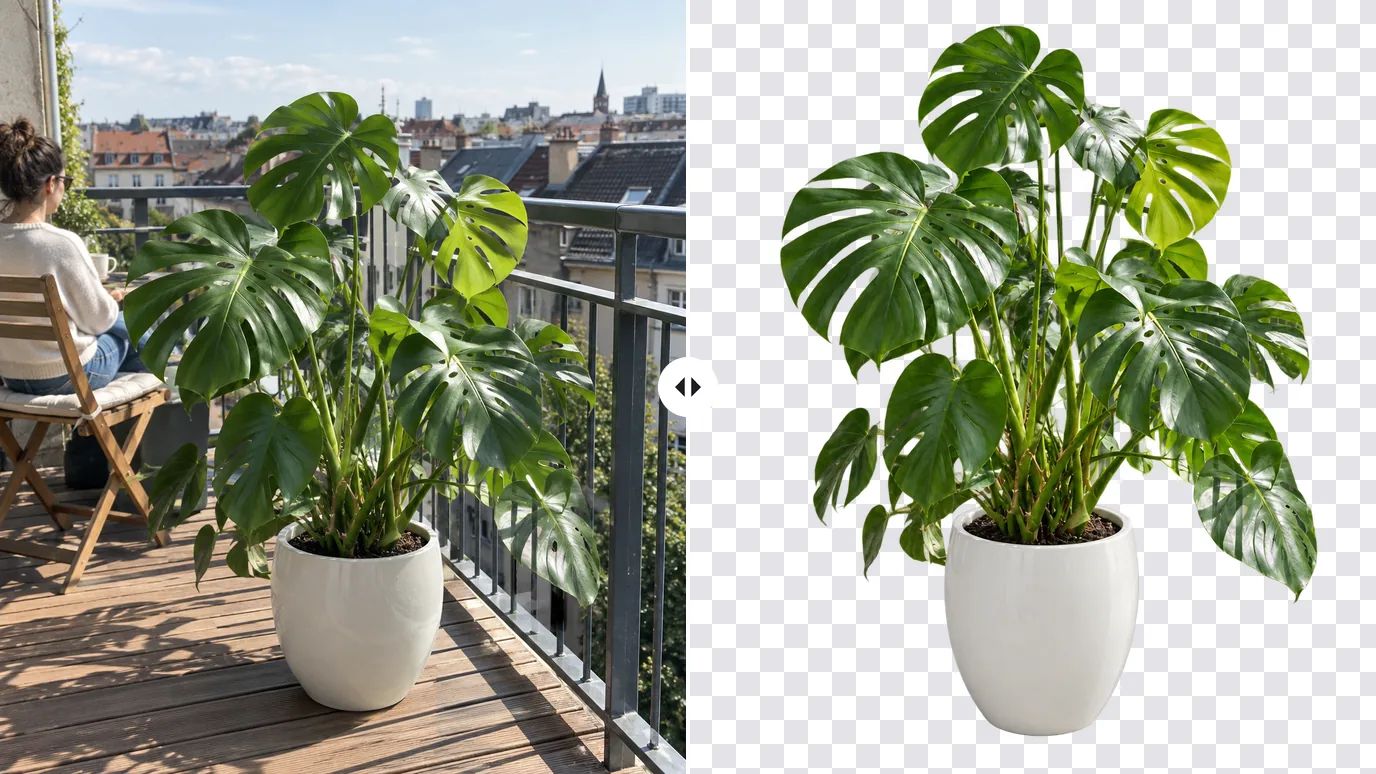
Before and after: a potted monstera plant on a sunny balcony, then the plant and its pot cut out on a transparent background

Who Uses an AI Background Remover

Anyone who needs the subject without the scene around it.

Online Sellers

Consistent product cutouts for marketplaces, stores and catalogs, shot on whatever surface was handy.

Job Seekers & Professionals

Cut yourself out of a casual photo for a profile picture, a resume or a team page.

Designers & Marketers

Isolate products, people and props for banners, ads, presentations and landing pages.

Content Creators

Build thumbnails, stickers and collages around a clean cutout of yourself or your pet.
How to Remove the Background from an Image

  1. Upload Your Image

    Sign in and upload a PNG, JPG or WEBP image up to 15 MB and 4096 × 4096 pixels.

  2. Click Create

    There's nothing to tune: no prompt and no brush.

  3. Download the Transparent PNG

    When the result is ready, download it as a PNG with a transparent background and use it anywhere.

Explore More AI Image Tools

Need a different fix? Each of these tools does one job well.

AI Image Generator

Create images from a text prompt with GPT Image 2.5, Nano Banana, Seedream and more.

Image to Image AI

Use a photo as the reference and generate it again in a new style, light or setting.

AI Photo Editor

Describe a change in plain words and edit the photo, no masks or layers.

AI Inpaint

Brush over one area and describe what should be painted there.

Object Remover

Brush over people, text or clutter and erase them cleanly.

Watermark Remover

Clear date stamps, logos and text overlays from your own images.

AI Background Changer

Replace the background with a new scene described in a text prompt.

Image Upscaler

Enlarge photos up to 16× with sharper detail and clean edges.

AI Uncrop

Extend a photo beyond its borders to fit any aspect ratio.

Photo Face Swap

Put the face from one photo onto another in a single step.

Image to Video

Bring your edited photo to life as a short video clip.

FAQs

A background remover separates the main subject of a photo from everything behind it and deletes the background. The result is a cutout on a transparent background that you can place on any color, scene or layout.

You upload one image and click Create. MaxH3 sends it to an AI background-removal model, which detects the subject and returns a PNG with an alpha channel, so everything behind the subject is transparent. No prompt, mask or brush is involved.

Yes. New accounts get free credits at signup with no card required, and the price of each background removal shows on the Create button. Downloads on the free tier carry a MaxH3 watermark; Lite and above remove it.

Yes. The result is a PNG with a transparent background. Soft edges, such as wisps of hair or fur, are kept as partial transparency rather than cut to a hard line.

Photos with one clear subject, such as a person, a pet, a product, a plant or a bicycle, give the cleanest cutouts. A subject that stands apart from its background in color, light or focus is the easiest for the AI to separate.

PNG, JPG and WEBP images up to 15 MB and up to 4096 pixels on each side.

Yes. Place the transparent PNG on any background in your own design tool, or let AI create one: the AI background changer replaces the background of the original photo with a scene you describe in a text prompt.

The background remover keeps the main subject and deletes everything else. The object remover does the opposite: you brush over the one thing you don't want, such as a passer-by or a sign, and only that is erased.

Yes, with any paid plan or credit pack, both of which include a commercial license and watermark-free downloads.

Remove the Background from Your Next Photo

Upload an image, click Create, and download a transparent PNG.