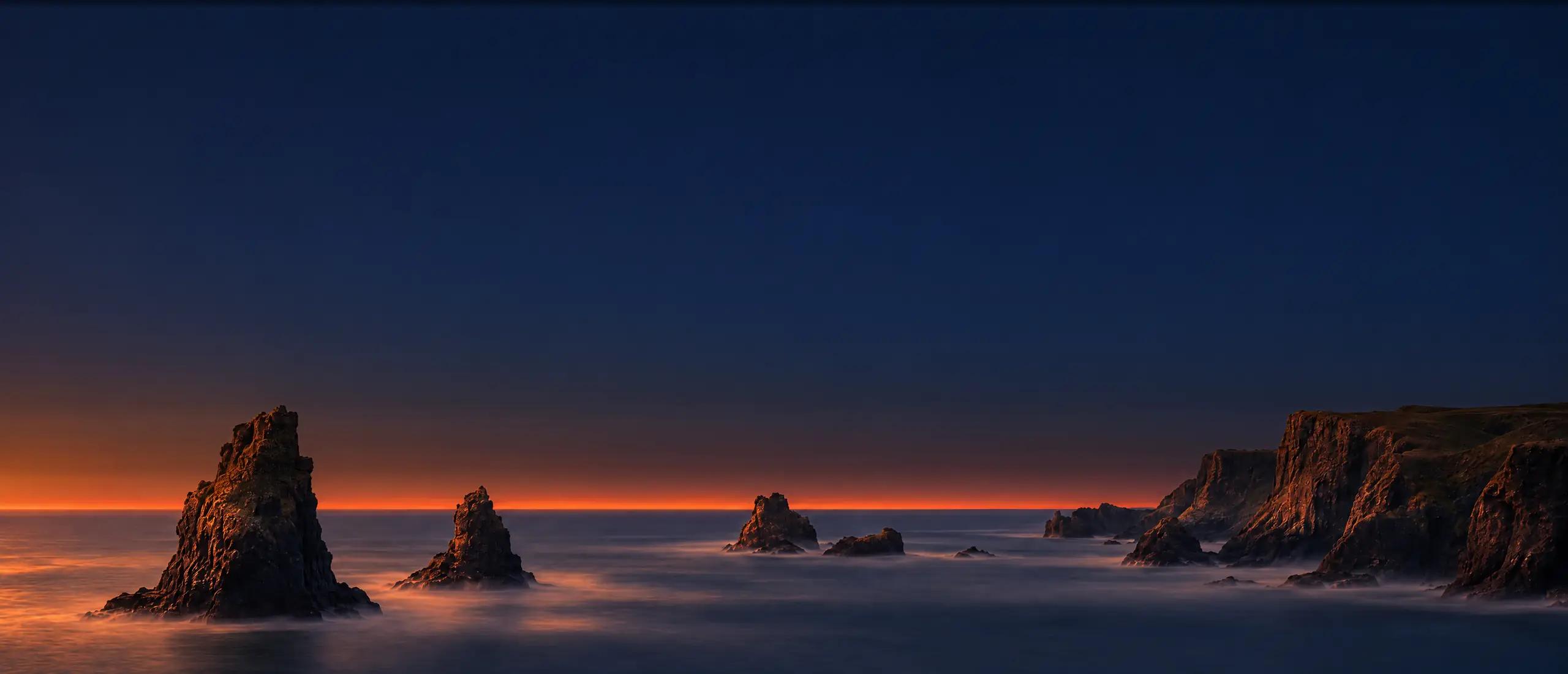
Uncrop & Expand Image

Uncrop example: an orange juice bottle expanded beyond its original frame on every side

Uncrop Photos and Expand Images with AI

Pick a new aspect ratio or drag the frame outward, and MaxH3's uncrop tool fills the new space around your photo with AI-generated scenery that continues the picture. Unlike the image upscaler, which enlarges the same picture, uncrop adds area beyond the original edges, with no prompt to write.
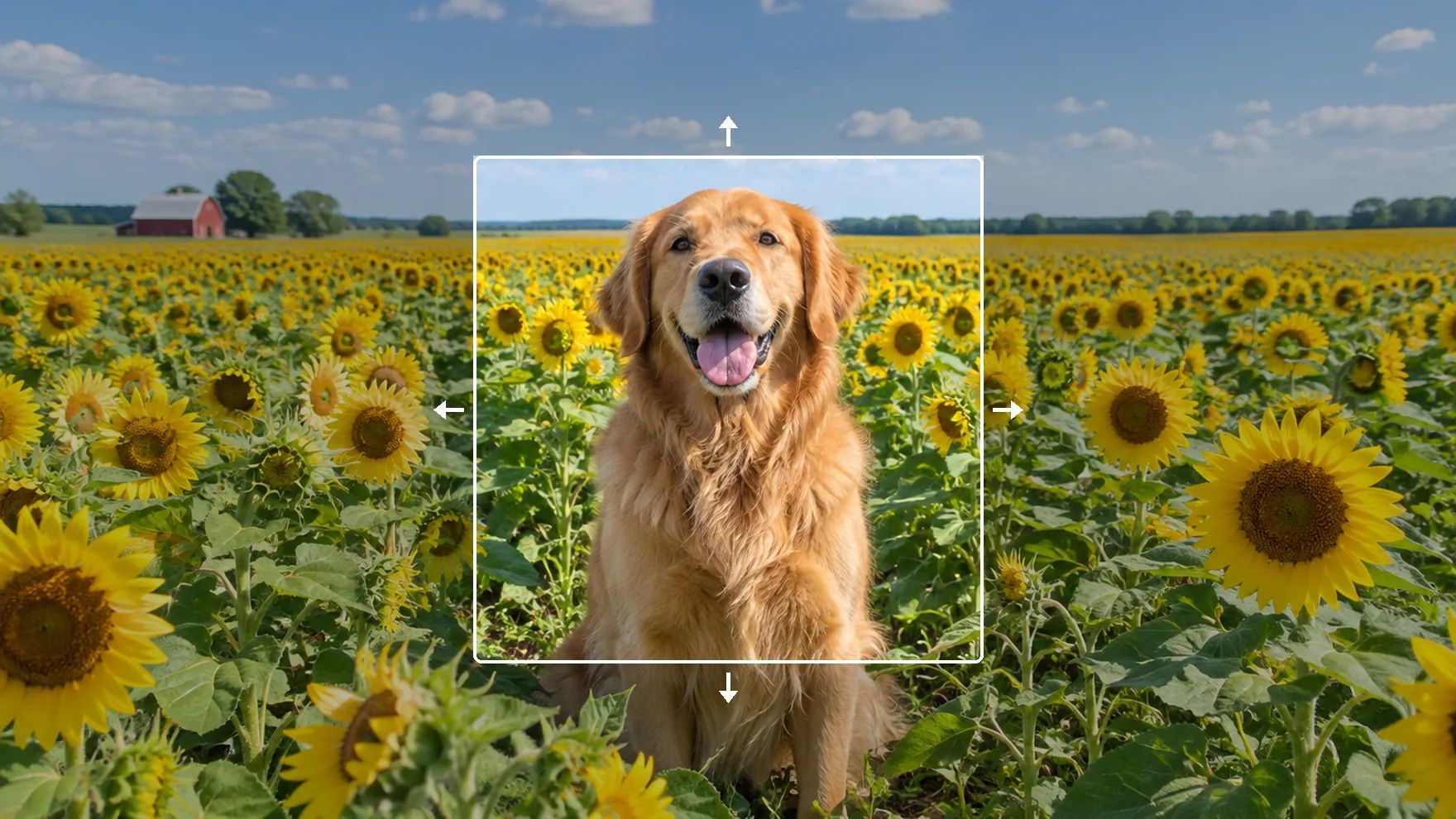
Uncrop example: a square photo of a golden retriever in a sunflower field, outlined in the center, expanded into a wide scene with more field and sky on every side

Expand Images to Fit Any Frame

Choose a ratio or drag each edge, and AI outpainting fills the space around your photo.

Change a Photo's Aspect Ratio Without Cropping

Turn a square shot into a 16:9 widescreen image, or a landscape photo into a 9:16 vertical one. Choose 1:1, 3:4, 4:3, 9:16, 16:9, 2:3 or 3:2, and the tool adds the missing width or height evenly on both sides instead of cutting anything away.
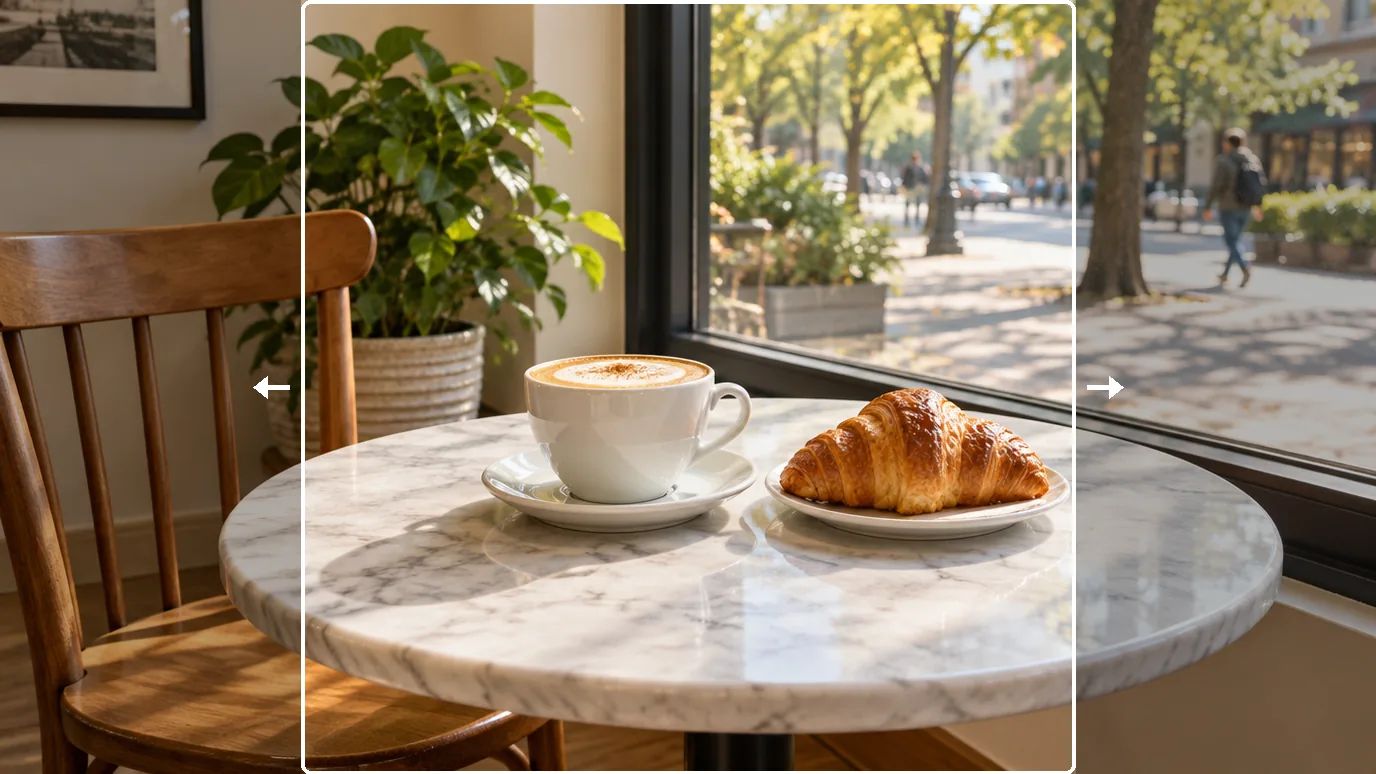
Uncrop example: a square photo of a cappuccino and a croissant on a marble café table, outlined in the center, extended left and right into a 16:9 image

Uncrop Photos That Were Cropped Too Tight

A portrait cut off at the shoulders can get its breathing room back: drag the frame outward and the AI generates surroundings that fit the scene, giving the subject space again.
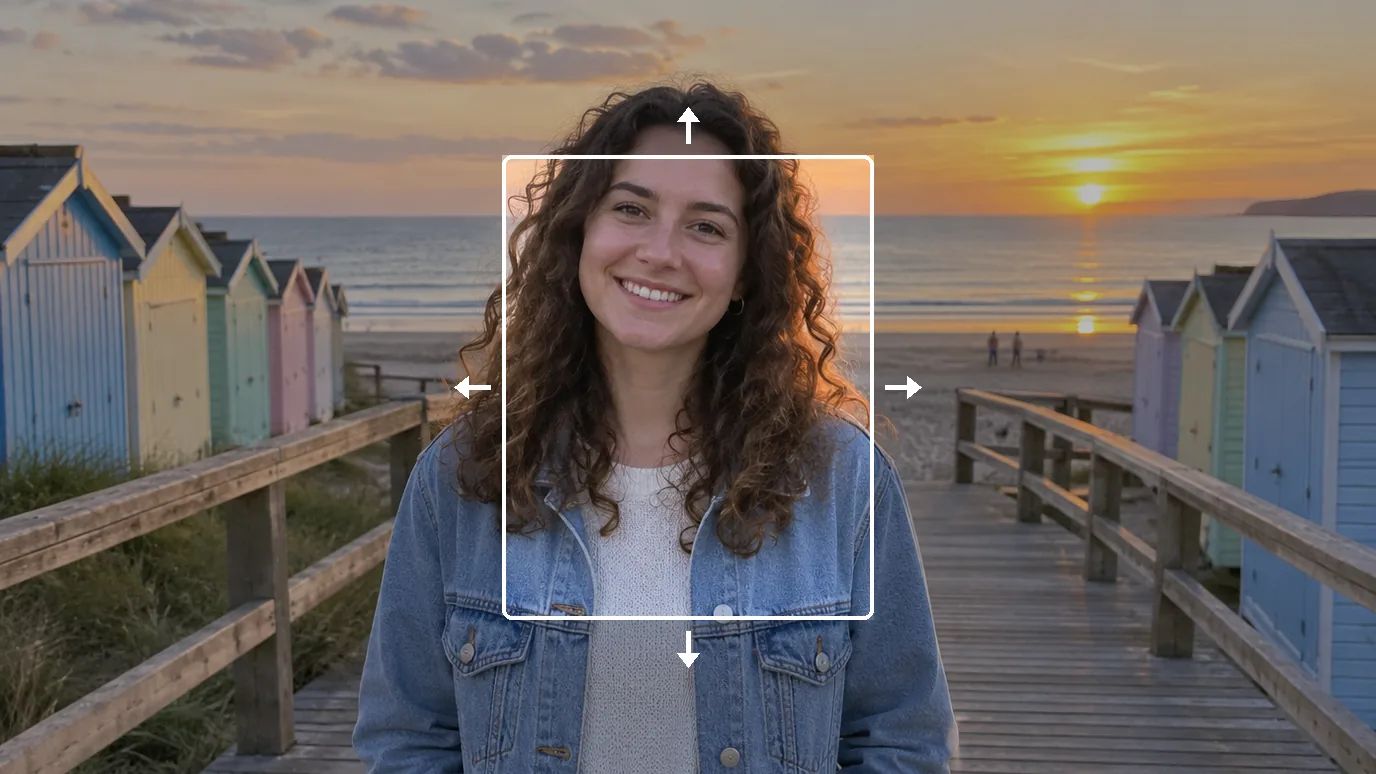
Uncrop example: a tight head-and-shoulders portrait of a smiling woman, outlined in the center, expanded to show her on a seaside boardwalk at sunset

Extend Backgrounds for Banners, Ads and Headers

Product shots are rarely the shape a website header or an ad slot needs. Extend the backdrop into a wide banner, and drag the photo toward one side if you want room for a headline. If you'd rather swap the backdrop for a new scene, try the AI background changer.
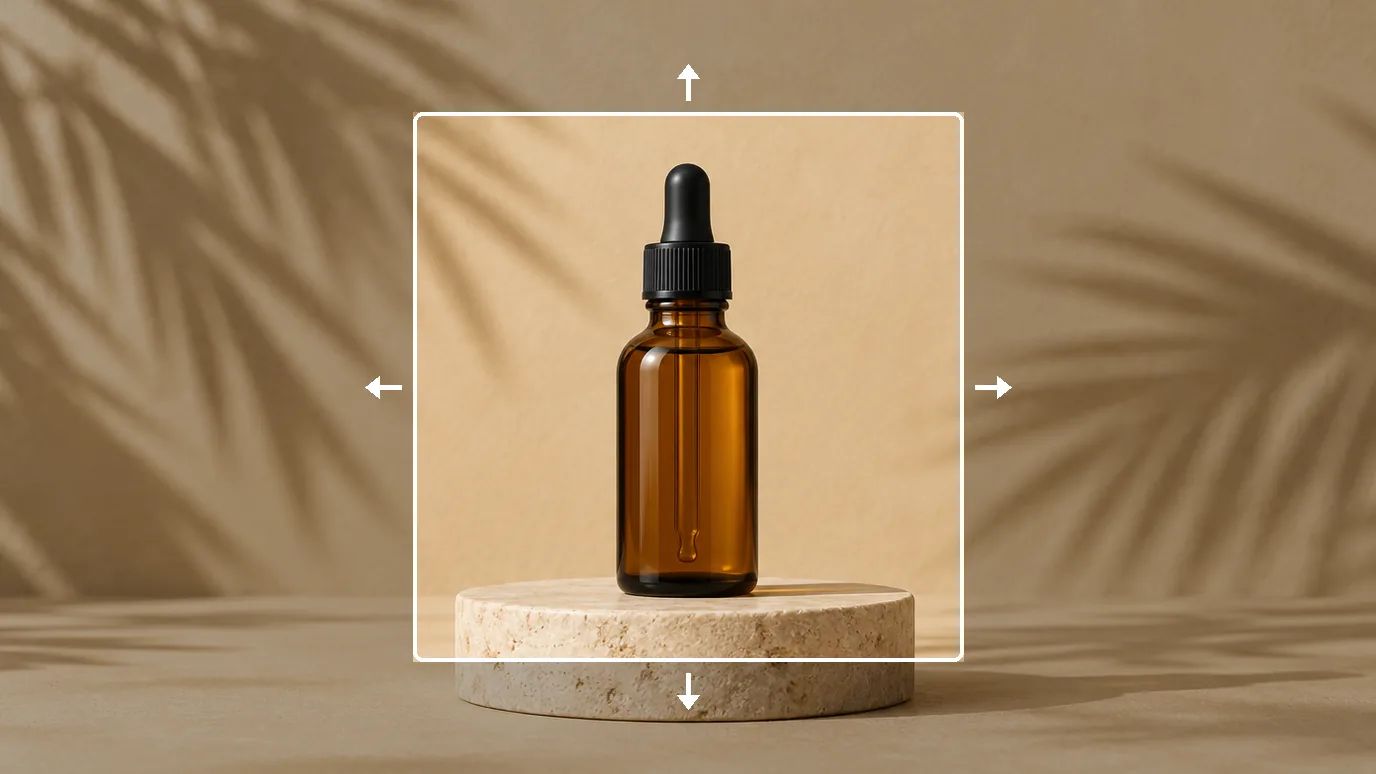
Uncrop example: an amber glass dropper bottle on a stone pedestal, outlined in the center, extended into a wide banner with more backdrop on each side

Widen Landscapes into Panoramas and Wallpapers

Give a mountain lake, a beach or a city skyline more sky and horizon. Drag the corner and edge handles to extend each side as far as you need, up to 5000 × 5000 pixels for the finished image, and turn a regular shot into a wide wallpaper or header.
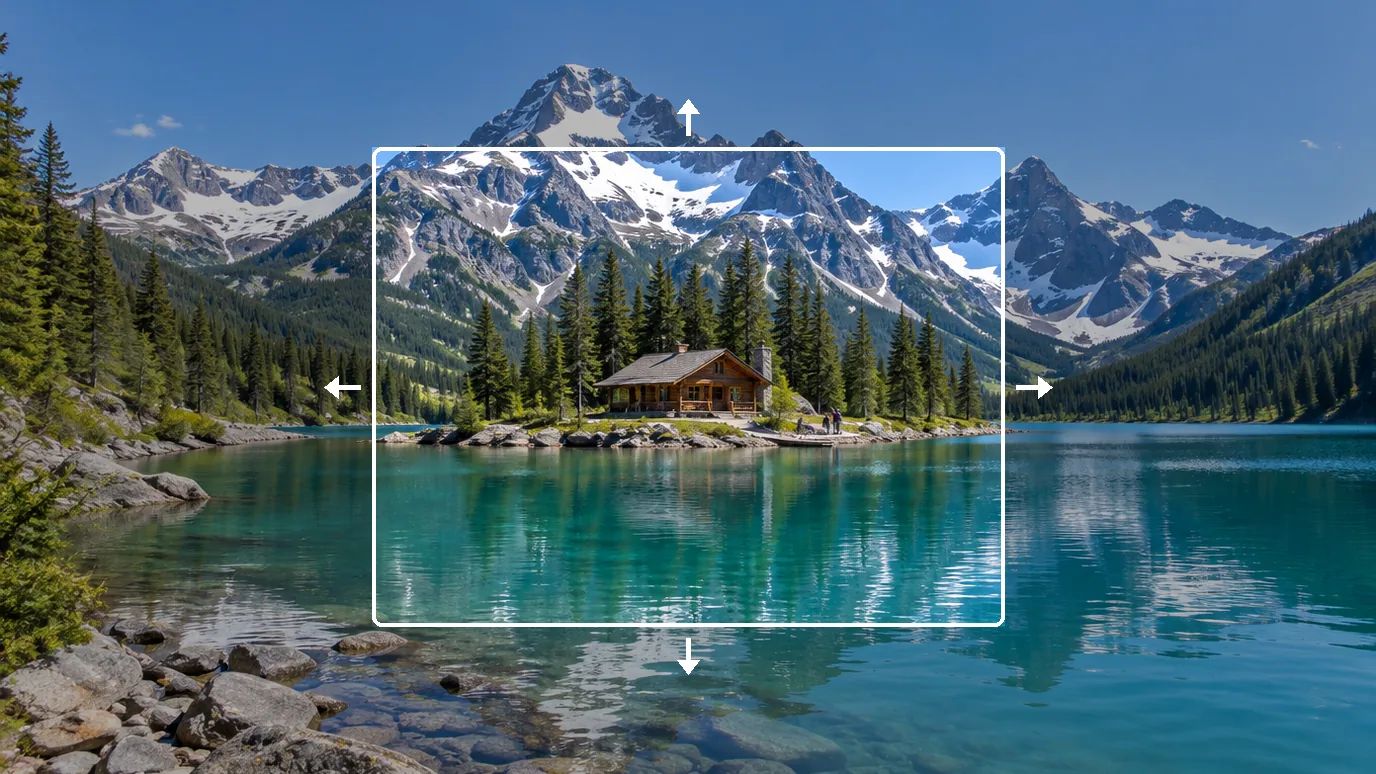
Uncrop example: a mountain lake with a wooden cabin, outlined in the center, widened into a panoramic view with more mountains, shoreline and sky

Who Uses an AI Image Extender

Anyone with a good photo in the wrong shape.

Social Media Creators

Reuse one photo across square posts, vertical stories and widescreen thumbnails without awkward crops.

Marketers & Designers

Get wide banners, ad creatives and slide backgrounds out of the photos you already have.

Photographers

Give a tightly framed subject more room, or loosen a composition after the shoot.

Online Sellers

Fit product photos to the image ratio each marketplace or storefront asks for.
How to Uncrop and Expand an Image

  1. Upload Your Image

    Sign in and upload a PNG, JPG or WEBP image.

  2. Choose a Ratio or Drag the Frame

    Pick an aspect ratio preset, or drag the corner and edge handles to extend each side freely. Drag the photo itself to change where it sits in the new canvas.

  3. Uncrop and Download

    Click Create. The new area around your photo is filled in by AI; download the result when it's ready.

Explore More AI Image Tools

Need a different fix? Each of these tools does one job well.

AI Image Generator

Create images from a text prompt with GPT Image 2.5, Nano Banana, Seedream and more.

Image to Image AI

Use a photo as the reference and generate it again in a new style, light or setting.

AI Photo Editor

Describe a change in plain words and edit the photo, no masks or layers.

AI Inpaint

Brush over one area and describe what should be painted there.

Background Remover

Cut out the subject in one click and download a transparent PNG.

Object Remover

Brush over people, text or clutter and erase them cleanly.

Watermark Remover

Clear date stamps, logos and text overlays from your own images.

AI Background Changer

Replace the background with a new scene described in a text prompt.

Image Upscaler

Enlarge photos up to 16× with sharper detail and clean edges.

Photo Face Swap

Put the face from one photo onto another in a single step.

Image to Video

Bring your edited photo to life as a short video clip.

FAQs

Uncropping, also called outpainting or image expansion, makes a picture bigger by generating new content beyond its original edges. The photo stays in place, and AI fills the added space so it matches the scene.

You set the new canvas with a ratio preset or the drag handles. MaxH3 sends your image, the canvas size and the photo's position to Bria Expand, an AI model built for image expansion, which fills everything outside the original frame. No text prompt is needed.

Yes. New accounts get free credits at signup with no card required, and the price of each uncrop shows on the Create button. Downloads on the free tier carry a MaxH3 watermark; Lite and above remove it.

The presets are 1:1, 3:4, 4:3, 9:16, 16:9, 2:3 and 3:2. For any other shape, drag the handles to set each side yourself, and the tool switches to Custom.

Not directly. Uncrop has no prompt: you decide how much is added on each side and where your photo sits, and the new area is generated to continue the scene. To add something specific afterwards, brush over that part of the result in AI Inpaint and describe it.

Continuous surroundings such as sky, sand, water, grass or plain walls usually extend most convincingly. Very large expansions, or busy detail cut off at the edges, can look less consistent; if so, try adding a smaller area.

No. The tool cannot see what was outside the frame when the photo was taken, so it generates new content that fits instead. For a cropped photo someone sent you, the result is a plausible extension, not the real missing part.

PNG, JPG and WEBP images up to 10 MB. The expanded image can be up to 5000 × 5000 pixels, and your photo keeps its original pixel size inside it.

Yes. Upload it like any other photo, or, after creating an image with the AI image generator, open Uncrop from the tool buttons under the result.

Yes, with any paid plan or credit pack, both of which include a commercial license and watermark-free downloads.

Give Your Photos More Room

Pick a ratio or drag the frame, and MaxH3 fills in the rest of the scene.