Video Reframe
The AI Video Reframe Tool for Social Media
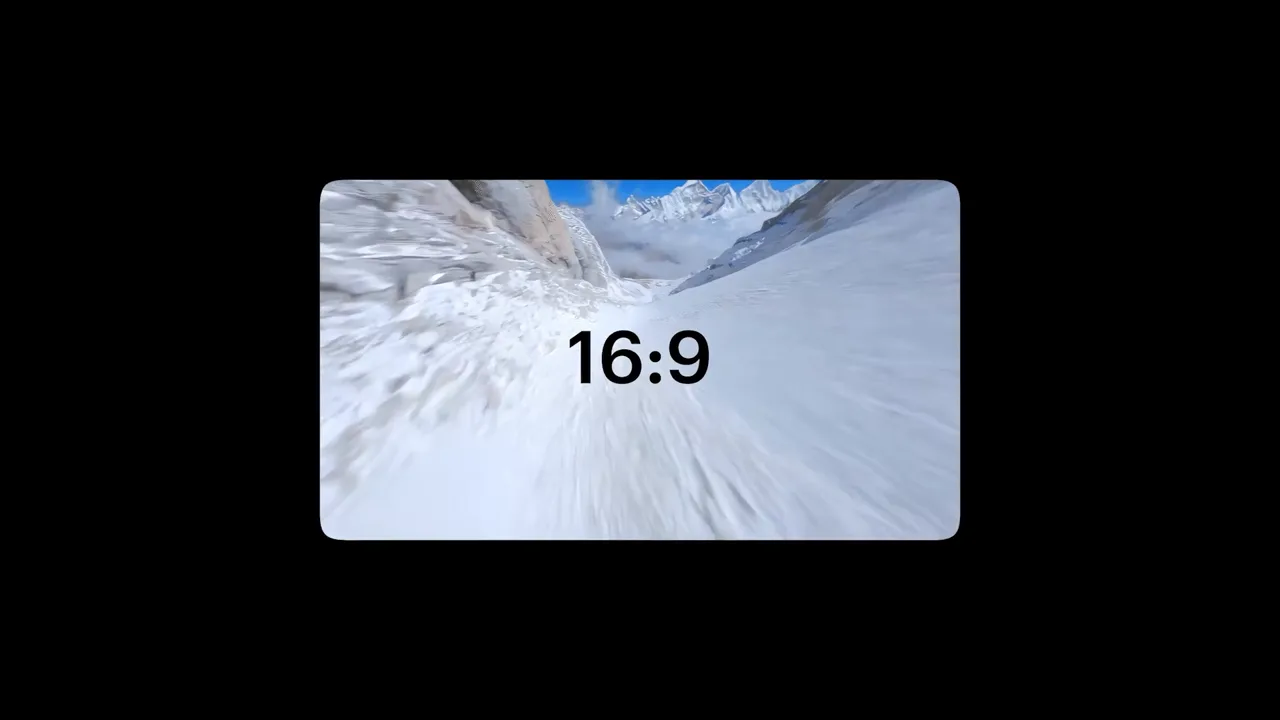
Turn one video into every format. Luma Ray 3.2 on MaxH3 rebuilt this 16:9 drone shot as a 9:16 vertical, painting new canyon walls, sky and river above and below the original frame instead of cropping it.
Six Ratios, One Upload
16:9, 9:16, 1:1, 4:3, 3:4 and 21:9, for YouTube, TikTok, Instagram, Facebook and more.
New Pixels, Not Black Bars
The added area is generated to match the scene, so nothing is lost to cropping or padding.
Social-Ready in Minutes
Our 5-second test clips came back in 1.5 to 2.5 minutes.
Intelligent Auto-Reframe for Dynamic Action
Moving subjects stay in the shot. A sports car sweeping along a coastal road keeps its place in a 9:16 vertical, with sky above and road below added to fill the taller frame.
Rapid Social Media Preset Distribution
Pick a platform ratio and go. A street dancer filmed in 16:9 becomes a 1:1 square for feeds, with more of the underpass and the floor generated above and below him.
Smart Background Filling for Aesthetic Clips
Going wider works too. A vertical, phone-style clip of a presenter became a 16:9 shot, with the rooftop railing and the city skyline extended on both sides of her.
AI Video Reframe for Every Platform
Shoot once, publish everywhere.
Multiply Your Reach Across Every Feed
Post the same clip as a vertical, a square and a widescreen without reshooting.
Scale Ad Campaigns Instantly
Adapt one ad to every placement's ratio in minutes.
Repurpose Long-Form Footage
Turn widescreen talks, webinars and trailers into vertical clips for short-video apps.
Keep One Master File
Edit once in your main format and generate the other ratios from it.

How to Reframe a Video With MaxH3
Upload Your Video
Add an MP4, MOV or WebM file up to 200 MB and 10 seconds in the Video Reframe tool above.
Pick a Ratio
Choose 16:9, 9:16, 1:1, 4:3, 3:4 or 21:9; each shows the platform it suits. The credit cost shows before you start.
Reframe and Download
Press Create and download the reframed 720p MP4 from your workspace.
FAQs

Get Every Format From One Video
Upload a clip, pick a ratio, and get a reframed version with the scene filled in, not cropped.